

From free open-source tools to AI-powered professional suites – we compared 10 graphic design platforms across capabilities, ease of use, AI features, and pricing to help every designer find their perfect creative toolkit.
The graphic design software market in 2026 looks radically different from just two years ago. AI-driven tools are now standard features in leading applications – Adobe’s Generative Fill in Photoshop, Text-to-Vector in Illustrator, and Canva’s AI design assistant have moved from novelty to essential daily workflow tools. Meanwhile, Canva’s acquisition of Affinity created a seismic shift: professional-grade desktop design tools that once cost $170 are now completely free, putting enterprise-level vector, photo editing, and page layout capabilities in everyone’s hands.
Designers now choose between subscription models (Adobe Creative Cloud), one-time purchases (CorelDRAW), completely free professional tools (Affinity, GIMP, Inkscape), and template-driven platforms (Canva, Adobe Express). The choice between free and paid is no longer a quality distinction – free tools like Affinity and Figma deliver genuinely professional results. The real differentiator is workflow fit: which tool matches how you actually design, collaborate, and deliver?
This guide evaluates 10 graphic design tools across the full spectrum from beginner to professional, free to premium. We analyzed SERP competitor articles from Creative Bloq, WeAndTheColor, HanscoStudio, FlippingBook, and multiple expert sources, cross-referencing with community reviews to identify the tools that consistently deliver for real designers across real projects.
How We Tested and Evaluated
Each platform was tested through standardized design tasks: creating a brand logo, designing a social media post set, editing a product photograph, and building a multi-page marketing brochure. We scored across seven criteria: Design Capability (depth of creative tools), AI Features (practical AI integration for productivity), Ease of Use (learning curve and onboarding time), Collaboration (team workflow and file sharing), File Compatibility (format support and cross-tool workflow), Pricing Transparency (actual total cost including hidden fees), and Output Quality (export quality for screen and print).
In-Depth Reviews: 10 Best Graphic Design Software for 2026
1. Adobe Photoshop – Score: 9.5/10
The industry standard for professional photo editing and raster design
Quick Facts
| Quick facts | |
|---|---|
| Pricing | $22.99/mo (Photography Plan) | $34.49/mo (single app) |
| Platform | Windows, macOS, iPad, Web (beta) |
| Category | Photo editing / raster design / AI image generation |
| Skill level | Intermediate to professional |
| Free plan | No – 7-day free trial |
| Developer | Adobe Inc. |
Detailed Review
Adobe Photoshop remains the undisputed industry standard for professional graphic design, photo editing, and raster-based digital artwork in 2026. Its AI capabilities have reached a new level with Generative Fill delivering sharper results, handling complex lighting with better accuracy, and enabling designers to expand canvases, remove elements, and build realistic composites with unprecedented control. The Topaz Gigapixel integration upscales images to 56 megapixels, while AI-based denoising reduces noise across challenging photographs.
Photoshop’s layer-based editing system, advanced masking, color grading, retouching tools, and massive plugin ecosystem make it indispensable for professional photographers, digital artists, web designers, and creative agencies. The seamless integration with Illustrator, InDesign, Lightroom, and the broader Creative Cloud ensures smooth workflows across any design project. The iPad version continues to close the gap with the desktop experience, and the web beta brings basic editing to any browser.
The Photography Plan at $22.99/month (including Lightroom) offers exceptional value for photographers and designers who primarily work with images. The subscription model remains polarizing, but for professionals whose livelihood depends on industry-standard tools, Photoshop’s capabilities and universal compatibility justify the investment.
Pros & Cons
- ✓Absolute industry standard – universal file compatibility
- ✓AI-powered Generative Fill and image enhancement
- ✓Deepest photo editing and compositing toolset available
- ✓Massive plugin and extension ecosystem
- ✓Seamless Creative Cloud integration
- ✓Available on desktop, iPad, and web
- ✗Subscription-only with no perpetual license
- ✗Steep learning curve for beginners
- ✗Requires powerful hardware for optimal performance
- ✗Expensive single-app pricing at $34.49/month
- ✗Overkill for simple graphics like social media posts
- ✗Generative AI features consume credits
What the Community Says
“Photoshop 2026 is anchored by AI. It’s a must-have in our list of the best graphic design tools.- WeAndTheColor
- ✓Professional photographers, digital artists, creative agencies, and anyone who needs the deepest raster editing and compositing tools available.
2. Adobe Illustrator – Score: 9.3/10
The gold standard for vector design, logos, typography, and print
Quick Facts
| Quick facts | |
|---|---|
| Pricing | $22.99/mo (annual) | CC All Apps: $59.99/mo |
| Platform | Windows, macOS, iPad, Web (beta) |
| Category | Vector design / logo / typography / packaging |
| Skill level | Intermediate to professional |
| Free plan | No – 7-day free trial |
| Developer | Adobe Inc. |
Detailed Review
Adobe Illustrator continues to lead the vector graphic design market in 2026 with AI-enhanced features powered by Adobe Firefly. Generative Shape Fill, Text-to-Vector, and Text-to-Pattern allow designers to generate complex visuals from simple text prompts. Performance improvements make menus, effects, and object rendering up to 5x faster than previous versions. The refined font browser, enhanced color gradients with perceptual blending, and lockable colored artboards streamline professional workflows.
For logo design, typography, packaging, and print production, Illustrator’s precision vector tools remain unmatched. Scalable vector graphics maintain perfect quality from business card to billboard. Cloud collaboration through Projects enables teams to work simultaneously, and Adobe Express template integration simplifies social media asset creation directly within Illustrator.
While the subscription model and learning curve create barriers for casual users, Illustrator remains non-negotiable for professional brand designers, packaging studios, and typographers. The Pen tool mastery required for advanced work transfers to every other vector application, making Illustrator skills the most portable in the design industry.
Pros & Cons
- ✓Unmatched precision for vector design and typography
- ✓AI-powered Generative Shape Fill and Text-to-Vector
- ✓Up to 5x faster performance in 2026 release
- ✓Industry-standard file formats and compatibility
- ✓Cloud collaboration with real-time teamwork
- ✓Skills transfer to every other vector tool
- ✗Subscription-only pricing
- ✗Steep learning curve, especially the Pen tool
- ✗Expensive for casual or occasional users
- ✗Desktop-focused despite iPad and web versions
- ✗Overkill for simple social media graphics
- ✗Requires strong Creative Cloud investment
What the Community Says
“Illustrator remains a trusted choice for vector design, and the 2026 update makes it more efficient with practical AI features.” – HanscoStudio
- ✓Professional brand designers, logo artists, typographers, packaging studios, and print production professionals.
3. Canva – Score: 9.1/10
The design platform that made professional graphics accessible to everyone
Quick Facts
| Quick facts | |
|---|---|
| Pricing | Free | Pro: $15/mo | Teams: $10/user/mo |
| Platform | Web, iOS, Android, Windows, macOS |
| Category | Template-based design / social media / marketing |
| Skill level | Beginner |
| Free plan | Yes – generous free tier with 4.5M+ templates |
| Developer | Canva Pty Ltd |
Detailed Review
Canva has fundamentally transformed who can create professional-quality designs. With 4.5 million+ templates, a drag-and-drop editor requiring zero design training, and AI-powered tools including Magic Write, background removal, and design suggestions, Canva enables marketers, small business owners, educators, and content creators to produce polished visuals in minutes rather than hours. The 2026 platform includes Affinity’s professional tools (acquired by Canva) as integrated capabilities.
The free tier is remarkably generous: access to hundreds of thousands of templates, basic photo editing, social media post creation, and presentation building. Canva Pro at $15/month unlocks premium templates, Brand Kit functionality, background remover, Magic Resize for adapting designs across platforms, and expanded storage. The Teams plan at $10/user/month adds collaboration features and admin controls for businesses.
Canva’s limitation for professional designers is well-documented: it prioritizes speed and accessibility over precision and control. You cannot achieve the typographic finesse of Illustrator, the photo manipulation depth of Photoshop, or the pixel-perfect control of Figma. But for the vast majority of design needs in marketing, social media, and business communication, Canva delivers results that are 90% as good in 10% of the time.
Pros & Cons
- ✓4.5M+ templates – largest design library available
- ✓Free tier is genuinely useful for most needs
- ✓AI-powered Magic Write, background remover, and design tools
- ✓Now includes Affinity professional tools in ecosystem
- ✓Available on every platform including mobile
- ✓Brand Kit for consistent brand identity management
- ✗Limited precision compared to professional design software
- ✗Template-dependent – custom designs require more effort
- ✗Pro features locked behind $15/month subscription
- ✗Not suitable for complex print production or packaging
- ✗Professional designers may find it restrictive
- ✗Exported files may not meet strict print specifications
- ✓Marketers, small business owners, content creators, educators, and non-designers who need professional-quality visuals quickly.
4. Figma – Score: 9.2/10
The collaborative design platform that revolutionized UI/UX and team workflows
Quick Facts
| Quick facts | |
|---|---|
| Pricing | Free (Starter) | Professional: $15/editor/mo | Organization: $45/editor/mo |
| Platform | Web (browser), macOS, Windows |
| Category | UI/UX design / collaborative design / prototyping |
| Skill level | Intermediate |
| Free plan | Yes – up to 3 projects and unlimited collaborators |
| Developer | Figma, Inc. |
- ✓Real-time collaboration – like Google Docs for design
- ✓Runs in browser – no downloads or platform restrictions
- ✓Free plan with unlimited collaborators
- ✓Massive plugin ecosystem extending functionality
- ✓Auto-layout for responsive design
- ✓Industry standard for UI/UX and digital design
- ✗Not designed for print production or CMYK workflows
- ✗Vector tools less deep than Adobe Illustrator
- ✗Free plan limited to 3 Figma files
- ✗Requires internet connection for full functionality
- ✗Organization plan expensive at $45/editor/month
- ✗Learning curve for non-digital designers
What the Community Says
“Figma has evolved beyond UI/UX into a flexible graphic design platform for digital-first brands.” – HanscoStudio
- ✓UI/UX designers, digital design teams, web designers, and any collaborative group that needs real-time design feedback.
5. Affinity Suite (by Canva) – Score: 9.0/10
Professional desktop design suite – now free with no subscription required
Quick Facts
| Quick facts | |
|---|---|
| Pricing | Free (after Canva acquisition) | Optional AI add-ons |
| Platform | Windows, macOS, iPad |
| Category | Vector / photo editing / page layout (3-in-1) |
| Skill level | Intermediate to professional |
| Free plan | Yes – completely free since Canva acquisition |
| Developer | Serif (acquired by Canva) |
Detailed Review
The Affinity Suite – previously known as Affinity Designer, Affinity Photo, and Affinity Publisher – underwent a dramatic transformation after Canva’s 2024 acquisition. The three separate applications have been merged into a single free platform with vector, pixel, and layout modes accessible through a Persona-switching system. This makes Affinity the most powerful free graphic design software available in 2026, offering professional-grade capabilities that rival Adobe’s Creative Cloud at zero cost.
Affinity Designer mode provides precise vector illustration tools with pen, node, and shape tools that compete directly with Illustrator. Photo mode delivers RAW editing, advanced retouching, HDR merge, and non-destructive adjustment layers comparable to Photoshop. Publisher mode handles multi-page layouts for print production, competing with InDesign. The seamless switching between modes within a single application eliminates the workflow friction of jumping between separate apps.
The trade-off is that Affinity’s new free model includes optional AI add-ons that carry additional costs, and the long-term sustainability of the free model depends on Canva’s business strategy. The smaller plugin ecosystem compared to Adobe, fewer third-party resources, and less industry-wide adoption mean some professional workflows still require Creative Cloud. But for independent designers, small studios, and anyone who rejected Adobe’s subscription model, Affinity’s free professional suite is transformative.
Pros & Cons
- ✓Completely free since Canva acquisition – no subscription
- ✓Three professional tools in one: vector, photo, layout
- ✓Competes directly with Illustrator, Photoshop, and InDesign
- ✓Available on Windows, Mac, and iPad
- ✓Non-destructive editing and professional color management
- ✓PSD, AI, PDF, and EPS file compatibility
- ✗Smaller plugin ecosystem than Adobe Creative Cloud
- ✗Long-term free model sustainability uncertain
- ✗AI features are optional paid add-ons
- ✗Less industry adoption than Adobe for agency handoff
- ✗Fewer tutorials and learning resources
- ✗Integration between modes can have quirks
- ✓Independent designers, small studios, freelancers, and anyone wanting professional-grade design tools without Adobe subscription costs.
7 Best Technographic Data Platforms for 2026 (Pricing Compared)
6. GIMP – Score: 8.2/10
The free open-source Photoshop alternative for capable image editing
Quick Facts
| Quick facts | |
|---|---|
| Pricing | Completely free and open-source |
| Platform | Windows, macOS, Linux |
| Category | Image editing / photo retouching / graphic design |
| Skill level | Intermediate |
| Free plan | Free forever |
| Developer | GIMP Development Team (open-source) |
Detailed Review
GIMP (GNU Image Manipulation Program) remains the most capable free image editing software available, offering layer-based editing, advanced masking, custom brushes, vector paths, and extensive filter systems that approach Photoshop’s functionality. For designers and photographers who need serious image editing capability without any cost, GIMP delivers professional results with no watermarks, no usage limits, and full high-resolution export support suitable for commercial projects.
The software supports PSD file import and export, handles transparent PNGs, and works with specialized formats like TIFF and DDS. This cross-format compatibility makes GIMP a viable tool in mixed-software workflows where team members use different applications. The extensive plugin system and Script-Fu automation allow advanced users to extend functionality and automate repetitive tasks.
GIMP’s primary drawbacks are its dated interface (compared to modern design tools), steep learning curve, lack of built-in AI features, and absence of CMYK support for professional print workflows. The open-source development model means updates come slower than commercial software. However, for budget-conscious designers, students, and Linux users, GIMP provides genuinely capable image editing at zero cost.
Pros & Cons
- ✓Completely free with no limitations or watermarks
- ✓Layer-based editing approaching Photoshop capability
- ✓PSD file compatibility for mixed workflows
- ✓Available on Windows, Mac, and Linux
- ✓Extensive plugin system and scripting automation
- ✓Active open-source community with regular updates
- ✗Dated interface compared to modern tools
- ✗Steep learning curve for beginners
- ✗No built-in AI features
- ✗No native CMYK support for print
- ✗Slower development cycle than commercial software
- ✗Lacks the polish and UX of paid alternatives
What the Community Says
“GIMP is an excellent download for those seeking capable, free design software with a strong community.” – Creative Bloq
Best For
- ✓Budget-conscious designers, students, Linux users, and photographers who need capable free image editing.
7. CorelDRAW – Score: 8.6/10
Precision vector design for print production, signage, and manufacturing
Quick Facts
| Quick facts | |
|---|---|
| Pricing | $36.58/mo (subscription) | $859 one-time purchase |
| Platform | Windows, macOS, Web, iPad |
| Category | Vector design / print production / sign making |
| Skill level | Intermediate to professional |
| Free plan | No – 15-day free trial |
| Developer | Alludo (formerly Corel Corporation) |
Detailed Review
CorelDRAW occupies a distinct niche in graphic design software as the preferred tool for print production, large-format signage, apparel design, and manufacturing applications. Its precise vector control, reliable file compatibility across printing systems, and specialized tools for engraving, embroidery, and cutting machine output make it indispensable in industries where physical output quality is critical.
The 2026 update improved vector controls and added stronger collaboration features for client feedback management. CorelDRAW offers both subscription and one-time purchase options, providing flexibility that Adobe’s subscription-only model does not. The suite includes photo editing (Corel PHOTO-PAINT), font management, and screen capture tools alongside the core vector illustration application.
CorelDRAW’s limitations include weaker AI integration compared to Adobe, a smaller general community (though strong in print/sign industries), and less relevance for digital-only design workflows. For designers working primarily in web and social media, Illustrator or Figma are better choices. But for print professionals who need precision output for physical products, CorelDRAW remains the specialist’s choice.
Pros & Cons
- ✓Unmatched precision for print, signage, and manufacturing
- ✓Both subscription and one-time purchase options available
- ✓Specialized tools for engraving, embroidery, and cutting
- ✓Strong file compatibility across printing systems
- ✓Suite includes photo editing and font management
- ✓Established industry standard in print production
- ✗Less relevant for digital-only design workflows
- ✗Weaker AI features compared to Adobe tools
- ✗Smaller community outside print/manufacturing industries
- ✗Higher learning curve than Canva or Figma
- ✗One-time purchase is expensive at $859
- ✗Limited mobile and web capabilities vs. competitors
What the Community Says
“CorelDRAW is often considered the best software for designers in manufacturing and print industries.” – HanscoStudio
Best For
- ✓Print production professionals, sign makers, apparel designers, and manufacturers who need precision vector output for physical products.
8. Inkscape – Score: 8.0/10
Free open-source vector editor for logos, icons, and scalable graphics
Quick Facts
| Quick facts | |
|---|---|
| Pricing | Completely free and open-source |
| Platform | Windows, macOS, Linux |
| Category | Vector graphics / logo design / icon design |
| Skill level | Intermediate |
| Free plan | Free forever |
| Developer | Inkscape Community (open-source) |
Detailed Review
Inkscape is the leading free, open-source vector graphics editor – the free-world’s answer to Adobe Illustrator. It handles SVG as its native format and supports export to PDF, EPS, PNG, and other standard formats. For creating logos, icons, web graphics, technical illustrations, and any design that needs to scale without quality loss, Inkscape provides professional-grade vector tools at zero cost.
The toolset includes path editing, boolean operations, text on path, gradient meshes, clones, and extensive filter effects. The interface, while not as polished as Illustrator, provides all the functionality needed for serious vector work. The open-source community contributes extensions, tutorials, and resources that continue to expand the platform’s capabilities.
Inkscape lacks the AI-powered features, cloud collaboration, and polished UX of commercial tools. Its performance on complex documents can lag, and the learning curve for advanced features is significant. However, for designers who need reliable vector editing without subscription costs – particularly on Linux – Inkscape is an essential tool.
Pros & Cons
- ✓Completely free with no limitations
- ✓SVG-native with broad format support
- ✓Professional vector tools for logos and illustrations
- ✓Available on Windows, Mac, and Linux
- ✓Active community with extensions and tutorials
- ✓No watermarks or usage restrictions
- ✗Interface less polished than commercial tools
- ✗No AI features or cloud collaboration
- ✗Performance can lag on complex documents
- ✗Steeper learning curve for advanced features
- ✗Fewer resources than Illustrator ecosystem
- ✗No CMYK support for professional print
What the Community Says
“Inkscape remains a capable vector editor with extensive tools. They lack AI features of commercial tools but provide cost-free alternatives.” – WeAndTheColor
- ✓Budget designers, students, open-source advocates, and anyone needing free vector editing for logos, icons, and web graphics.
9. Photopea – Score: 8.4/10
Free browser-based Photoshop alternative that runs anywhere
Quick Facts
| Quick facts | |
|---|---|
| Pricing | Free (ad-supported) | Premium: $5/mo (ad-free) |
| Platform | Web (any browser) |
| Category | Photo editing / raster design |
| Skill level | Intermediate |
| Free plan | Yes – all features free with ads |
| Developer | Ivan Kutskir (independent) |
Detailed Review
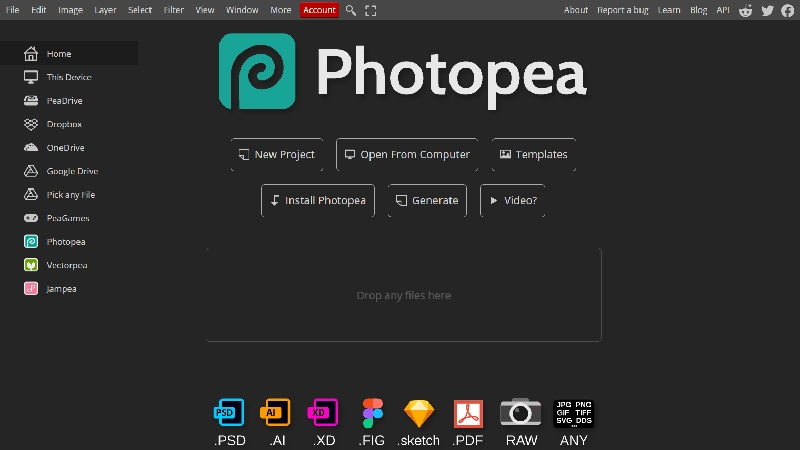
Photopea is a remarkable achievement: a free, browser-based graphic editor that replicates Photoshop’s interface and functionality with surprising accuracy. Running entirely in your web browser with no downloads, installations, or account requirements, Photopea provides layer-based editing, advanced selection tools, filters, text manipulation, and support for PSD, XCF, Sketch, and XD files. For anyone who needs Photoshop-like editing on any computer with an internet connection, Photopea delivers.
The tool is particularly valuable in environments where installing software is restricted (school computers, work laptops, Chromebooks) or where budget prohibits Adobe subscriptions. All features are available for free, with the premium $5/month plan simply removing advertisements. The PSD file support means you can open and edit Photoshop files without owning Photoshop – a critical capability for freelancers collaborating with teams that use Adobe.
Photopea’s limitations include slower performance than native desktop applications (particularly on complex files), dependence on internet connectivity, and the absence of advanced features like AI-powered Generative Fill, Camera RAW processing, or the sophisticated color management found in Photoshop. But as a free, instantly accessible alternative, its value-to-cost ratio is essentially infinite.
Pros & Cons
- ✓Free with all features – no downloads or installation
- ✓Runs in any browser including Chromebooks
- ✓Opens PSD, Sketch, XD, and XCF files natively
- ✓Photoshop-like interface and workflow
- ✓No account required to start editing
- ✓Premium removes ads for just $5/month
- ✗Slower than native desktop applications
- ✗Requires internet connection
- ✗No AI-powered generative features
- ✗Limited RAW processing capabilities
- ✗Performance struggles on very complex files
- ✗One-person development team (slower feature updates)
What the Community Says
“Photopea offers Photoshop-like control without any paid software. A great browser-based solution.” – NaveenGFX
Best For
- ✓Students, freelancers on budget, Chromebook users, and anyone needing Photoshop-like editing without downloading software or paying subscriptions.
10. Adobe Express – Score: 8.3/10
Quick professional graphics for social media and marketing without design skills
Quick Facts
| Quick facts | |
|---|---|
| Pricing | Free | Premium: $9.99/mo (included in CC All Apps) |
| Platform | Web, iOS, Android |
| Category | Quick design / social media / marketing graphics |
| Skill level | Beginner |
| Free plan | Yes – with basic features and limited assets |
| Developer | Adobe Inc. |
Detailed Review
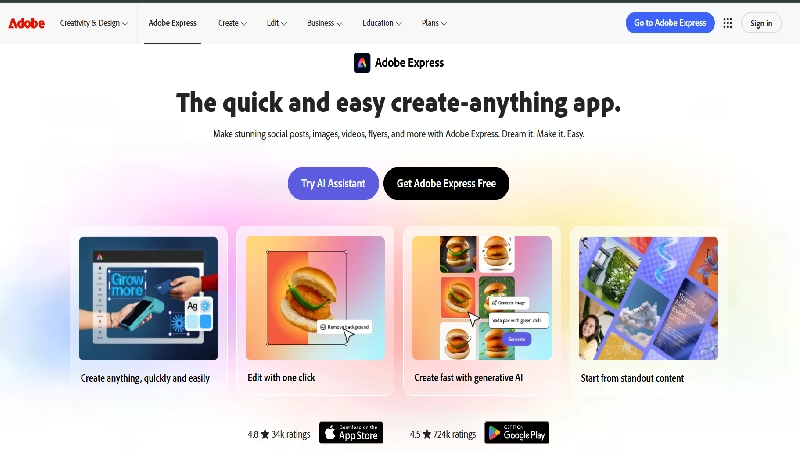
Adobe Express (formerly Adobe Spark) brings Adobe’s design expertise to a simplified, template-driven platform designed for quick social media graphics, short videos, and branded marketing content. Unlike Photoshop or Illustrator, Adobe Express requires zero design training – you pick a template, customize text and images, and export in minutes. The AI-powered features generate backgrounds, remove objects, and suggest design improvements automatically.
The free plan includes basic templates, some Adobe Stock images, and standard design tools. The Premium plan at $9.99/month unlocks thousands of premium templates, the full Adobe Fonts library, brand kit functionality, and advanced AI features. For Adobe Creative Cloud subscribers, Express is included at no additional cost, making it an excellent companion tool for quick social content alongside Photoshop and Illustrator.
Adobe Express competes directly with Canva, and the comparison is instructive: Canva offers more templates and a more intuitive interface, while Adobe Express provides tighter integration with Creative Cloud and access to Adobe’s superior asset libraries. For businesses already invested in the Adobe ecosystem, Express fills the gap between professional tools and everyday marketing needs.
Pros & Cons
- ✓Adobe-quality design in a simplified interface
- ✓AI-powered background generation and object removal
- ✓Free plan available with basic functionality
- ✓Included with Creative Cloud All Apps subscriptions
- ✓Strong integration with Adobe Stock and Fonts
- ✓Mobile apps for on-the-go content creation
- ✗Fewer templates than Canva's library
- ✗Free plan limited in assets and features
- ✗Less intuitive than Canva for complete beginners
- ✗Premium pricing higher than Canva Pro
- ✗Limited customization compared to full Adobe tools
- ✗Some AI features require additional credits
What the Community Says
“Adobe Express brings Adobe’s design experience to beginners. Excellent for fast, polished visuals.” – HAPX Digital
Best For
- ✓Adobe ecosystem users, marketing teams needing quick social media content, and businesses wanting Adobe-quality templates without professional design skills.
Full Comparison Table
| Software | Price | Free Option | Best For | AI | Score |
|---|---|---|---|---|---|
| Photoshop | $22.99/mo | No (trial) | Photo/Raster | Generative Fill | 9.5 |
| Illustrator | $22.99/mo | No (trial) | Vector/Print | Text-to-Vector | 9.3 |
| Figma | $15/editor/mo | Yes (3 files) | UI/UX Teams | Plugins | 9.2 |
| Canva | $15/mo Pro | Yes | Everyone | Magic Write+ | 9.1 |
| Affinity | Free | Yes (full) | Pro Free Alt | Add-ons | 9.0 |
| CorelDRAW | $36.58/mo | No (trial) | Print/Signs | Basic | 8.6 |
| Photopea | $5/mo | Yes (ads) | Browser Edit | None | 8.4 |
| Adobe Express | $9.99/mo | Yes | Quick Social | AI Generate | 8.3 |
| GIMP | Free | Yes | Image Edit | None | 8.2 |
| Inkscape | Free | Yes | Vector Free | None | 8.0 |
Buyer’s Guide: Which Graphic Design Software Is Right for You?
By Design Need
By Budget
Frequently Asked Questions
What is the best free graphic design software in 2026?
Affinity Suite (by Canva) is the most powerful free option, offering professional-grade vector, photo editing, and page layout tools. For specific needs: Figma for collaborative digital design, GIMP for image editing, Inkscape for vector graphics, and Photopea for browser-based Photoshop-like editing. Canva’s free tier is best for template-based quick design.
Is Adobe Creative Cloud still worth the subscription in 2026?
For professional designers working with clients and agencies, yes. Photoshop and Illustrator remain industry standards with unmatched AI features and universal file compatibility. However, the rise of free alternatives like Affinity makes Adobe less essential for independent designers and small studios than ever before.
Can I do professional graphic design with free software?
Absolutely. Affinity Suite provides professional-grade tools rivaling Adobe. GIMP handles serious photo editing. Inkscape delivers production-quality vector work. Figma is already the industry standard for UI/UX – and its free tier is genuinely useful. The gap between free and paid software has never been narrower.
Which software should a beginner learn first?
Canva for immediate practical results. Then Figma for digital design skills that transfer to professional work. Photoshop and Illustrator when you are ready for industry-standard proficiency. Start with the tool that matches your immediate design needs rather than trying to learn everything at once.
What is the best Photoshop alternative in 2026?
Affinity Photo mode (free, professional-grade), Photopea (free, browser-based), or GIMP (free, open-source). Each approaches Photoshop from a different angle: Affinity in polish and features, Photopea in accessibility, and GIMP in customization depth.
Is Canva enough for a small business?
For most small business marketing, social media, and presentation needs, Canva is more than sufficient. Canva Pro at $15/month delivers professional-quality graphics for 90% of typical business design tasks. You only need specialized tools like Photoshop or Illustrator for complex photo editing, precision print production, or advanced brand identity work.
Final Thoughts
2026 marks a genuine turning point in graphic design software: for the first time, professional-quality design tools are available to everyone at zero cost. Canva’s acquisition of Affinity means the same caliber of vector, photo editing, and layout tools that once required hundreds of dollars in software purchases are now free. Figma’s browser-based collaboration has democratized team design. And AI integration across every major platform is eliminating repetitive tasks, letting designers focus on the creative thinking that makes great work.
For professionals entrenched in client-facing workflows, Adobe Creative Cloud’s Photoshop and Illustrator remain the safest choices – universal compatibility, the deepest toolsets, and AI features that are genuinely production-ready. For small businesses and content creators, Canva delivers 90% of what you need in 10% of the time. For budget-conscious designers who want professional power without subscription costs, the Affinity Suite is the single biggest value proposition in the design software market.
Whatever tool you choose, remember that software is an instrument, not a substitute for design thinking. The best graphic design comes from understanding your audience, solving visual communication problems, and applying fundamental principles of typography, color, and composition – skills that transfer across every application on this list. Pick the tool that matches your workflow and budget, master its capabilities, and let your creativity define the quality of your work.
