

The landscape of free video editing software has transformed beyond recognition. In 2026, DaVinci Resolve – the same tool used to color grade Hollywood films – is completely free. CapCut has amassed 300 million monthly active users by making social media editing effortless. Open – source editors like Shotcut and Kdenlive have matured into genuinely capable tools. And yet, many creators still waste money on software they do not need, or worse, settle for free editors that stamp ugly watermarks on their exports.
This guide cuts through the noise with a strict rule: every editor on this list exports without a watermark on its free tier. No sneaky limitations, no trial – period traps, no “free but actually premium” bait – and – switch. We tested each editor through real production workflows – YouTube videos, TikTok content, short films, and business presentations – and evaluated on editing power, ease of use, export quality, platform support, and honest limitations.
We cross – referenced insights from CyberLink (13 tools tested), Krock.io (11 tools reviewed), Flixier (14 editors compared), CameraLab, EdicionVideoPro, and multiple expert sources to ensure every recommendation is backed by real – world testing and community validation.
Quick Verdict: Our Top 4 Free Picks
| Editor | Best For | Watermark | Score |
| DaVinci Resolve | Pro – Level Editing | None – ever | 9.6/10 |
| CapCut Desktop | Social Media Content | None (desktop) | 9.2/10 |
| Shotcut | Intermediate Editors | None – ever | 8.5/10 |
| Kdenlive | Linux / Open – Source | None – ever | 8.4/10 |
How We Tested and Evaluated
Each editor was tested through four standardized projects: editing a 10 – minute YouTube video from raw footage, creating three 60 – second social media clips, compositing green screen footage, and color grading a short cinematic sequence. We scored across seven criteria: Export Quality (resolution, watermark status, format options), Feature Depth (editing tools, effects, audio, color), Ease of Use (time from download to finished first video), Performance (stability, rendering speed, hardware requirements), Platform Support (operating systems and devices), AI Features (auto – captions, background removal, smart tools), and Community and Learning (tutorials, forums, documentation availability).
In – Depth Reviews: 10 Best Free Video Editors for 2026
1. DaVinci Resolve
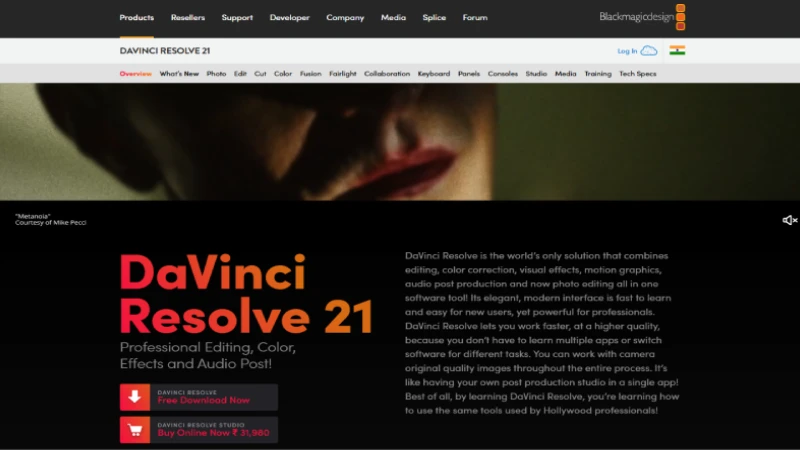
Our Score: 9.6/10
Quick Facts
| Pricing | Free forever (Studio version: $295 one – time) |
| Platform | Windows, macOS, Linux |
| Watermark | No watermark – ever |
| Max Export | Up to 4K (free) | Up to 32K (Studio) |
| Best For | Serious editors, filmmakers, colorists, YouTubers |
| Developer | Blackmagic Design |
Detailed Review
DaVinci Resolve is the single most powerful free video editor on the planet in 2026 – and it is not even close. Used in Hollywood post – production for feature films, Netflix originals, and broadcast television, Resolve offers a complete professional editing suite with color grading, visual effects (Fusion), audio mixing (Fairlight), and multi – track timeline editing – all completely free with no watermark, no export limitations, and no trial period.
The free version delivers approximately 90% of the paid Studio version’s features. You get unlimited editing tracks, professional color grading tools that are considered the best in the industry, the Fusion compositing engine for visual effects, Fairlight audio workstation for mixing and mastering, and export up to 4K resolution. The only features locked behind the $295 one – time Studio purchase are advanced collaboration, 120fps+ timelines, certain AI tools (magic mask, speed warp), and DaVinci Neural Engine features.
The honest trade – off is the learning curve. DaVinci Resolve is a professional tool with multiple workspace pages (Cut, Edit, Fusion, Color, Fairlight, Deliver), and mastering it takes weeks to months. It also demands a reasonably powerful computer – at minimum 16GB RAM and a dedicated GPU. But for any creator serious about developing professional editing skills, Resolve is the tool that will never limit your growth and costs absolutely nothing to start.
Pros & Cons
| PROS | CONS |
| Completely free with zero watermarks or export limits | Steep learning curve – weeks to months to master |
| Hollywood – grade color grading – industry best | Requires powerful hardware (16GB+ RAM, dedicated GPU) |
| Full audio mixing workstation (Fairlight) included free | Interface can overwhelm beginners with multiple pages |
| Visual effects compositing engine (Fusion) included free | Some AI features locked behind Studio version |
| Up to 4K export on free version | Large installation file size (~2GB) |
| Studio version is one – time $295 – no subscription | Not optimized for quick social media content creation |
What the Community Says
“DaVinci Resolve is the closest you can get to Hollywood – grade editing software without paying. If your computer meets requirements, it’s arguably the best free editor available.” – CameraLab
BEST FOR
Serious creators aiming for professional – level production quality, filmmakers, YouTube editors, colorists, and anyone willing to invest learning time for unlimited capability.
2. CapCut Desktop
Our Score: 9.2/10
Quick Facts
| Pricing | Free | Pro: $7.99/mo (additional AI features) |
| Platform | Windows, macOS, iOS, Android, Web |
| Watermark | No watermark on desktop exports |
| Max Export | Up to 4K |
| Best For | TikTok, Reels, Shorts creators, social media content |
| Developer | ByteDance (TikTok parent company) |
Detailed Review
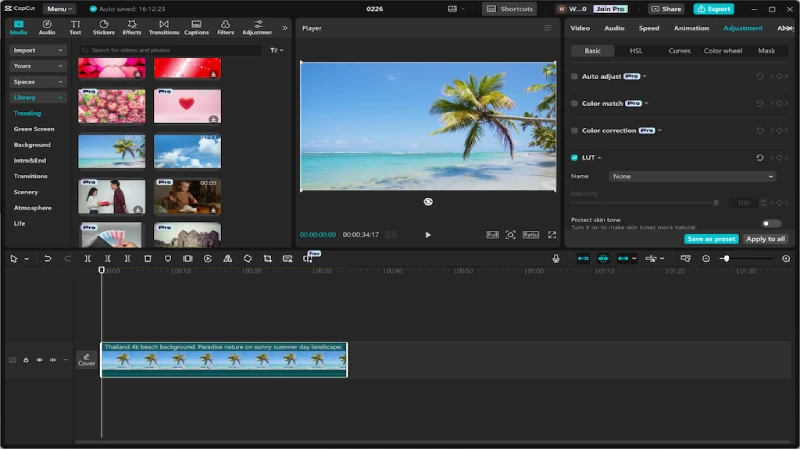
CapCut Desktop has exploded to 300 million monthly active users in 2026, making it the most popular free video editor in the world by user count. Made by ByteDance (TikTok’s parent company), it offers seamless TikTok integration where trending effects, sounds, and templates sync instantly. The AI features are genuinely impressive: auto – captions in 23 languages, one – click background removal, voice cloning, AI script generation, and a template library with 10,000+ viral – format presets.
The desktop version exports without watermarks and supports up to 4K resolution. The editing interface is radically simple compared to DaVinci Resolve – timeline at the bottom, effects on the side, templates on top. If you have used any modern mobile app in the last five years, you will figure out CapCut in under 10 minutes. For sub – 3 – minute social media content, CapCut’s speed from idea to published video is unmatched.
CapCut’s limitations are real: it is not a professional editing suite for long – form content. Documentary editing, narrative filmmaking, and complex multi – track projects will outgrow CapCut quickly. The data privacy concerns around ByteDance’s data collection practices are worth considering. And while the free version is powerful, some advanced AI features and premium templates require the Pro subscription at $7.99/month. For short – form social creators, however, CapCut has become essentially mandatory.
Pros & Cons
| PROS | CONS |
| 300M+ users – most popular free editor globally | Not suited for long – form or professional content |
| No watermark on desktop exports up to 4K | Data privacy concerns with ByteDance ownership |
| AI auto – captions in 23 languages | Some AI features require Pro subscription ($7.99/mo) |
| One – click background removal and voice cloning | Limited color grading compared to Resolve |
| 10,000+ viral templates for TikTok/Reels/Shorts | Mobile version has some watermark restrictions |
| Lightning fast – edit and export in minutes | Dependency on TikTok ecosystem for templates |
What the Community Says
“If DaVinci Resolve is a Ferrari, CapCut is a Tesla Model 3: fast, efficient, gets you where you need to go. 300 million monthly active users can’t be wrong.” – EdicionVideoPro
BEST FOR
TikTok creators, Instagram Reels producers, YouTube Shorts creators, social media managers, and beginners who want professional results in minutes.
3. Shotcut
Our Score: 8.5/10
Quick Facts
| Pricing | Completely free and open – source |
| Platform | Windows, macOS, Linux |
| Watermark | No watermark – ever |
| Max Export | Up to 4K+ |
| Best For | Intermediate editors, Linux users, format flexibility |
| Developer | Shotcut (Open – Source Community) |
Detailed Review
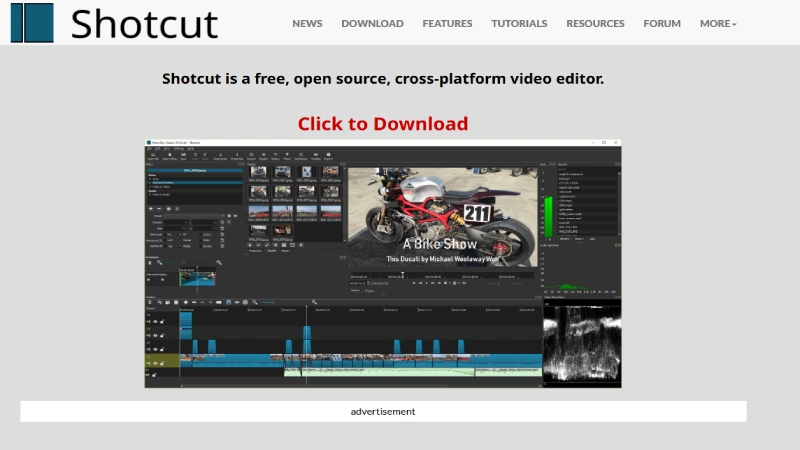
Shotcut sits in the valuable middle ground between CapCut’s simplicity and DaVinci Resolve’s complexity. This free, open – source editor supports advanced features like chroma key (green screen), keyframe animation, motion tracking, and detailed audio editing while remaining more approachable than Resolve for intermediate users. The interface looks slightly technical at first, but once learned, it provides strong creative flexibility without the learning cliff of professional suites.
The format support is among Shotcut’s greatest strengths – it handles virtually every video and audio format natively through FFmpeg integration, meaning you will never encounter a file Shotcut cannot open. 4K editing is smooth on reasonably modern hardware, and the export options cover every major format and codec. The cross – platform availability (Windows, Mac, Linux) with identical functionality across all three makes it the best free editor for mixed – OS environments.
Shotcut lacks the polished UI of CapCut, the color grading depth of DaVinci Resolve, and the guided workflow of commercial editors. The community – driven development means support comes through forums and documentation rather than dedicated customer service. But for creators who want more power than basic editors offer without the overwhelming complexity of professional suites, Shotcut delivers genuine editing capability at zero cost.
Pros & Cons
| PROS | CONS |
| Completely free, open – source, no watermark ever | Interface less polished than commercial alternatives |
| Handles virtually every video/audio format via FFmpeg | No built – in AI features |
| Cross – platform: identical on Windows, Mac, Linux | Community – only support – no customer service |
| Advanced features: chroma key, keyframing, audio editing | Fewer tutorials and learning resources than major editors |
| Smooth 4K editing on moderate hardware | Proxy editing less refined than Resolve |
| Lightweight installation compared to DaVinci Resolve | Can crash on very complex projects |
What the Community Says
“Shotcut balances usability and professional control. More powerful than OpenShot, it handles Full HD and 4K editing reliably.” – CameraLab
BEST FOR
Intermediate editors, Linux users, creators needing broad format support, and anyone wanting more power than basic editors without Resolve’s complexity.
4. iMovie
Our Score: 8.3/10
Quick Facts
| Pricing | Free (pre – installed on all Apple devices) |
| Platform | macOS, iOS (iPhone/iPad) |
| Watermark | No watermark – ever |
| Max Export | Up to 4K |
| Best For | Mac/iPhone users, beginners, quick edits |
| Developer | Apple Inc. |
Detailed Review
iMovie is the video editor you already own if you have any Apple device. Pre – installed on every Mac, iPhone, and iPad, it offers zero learning curve, watermark – free exports up to 4K, and seamless ecosystem integration that lets you start editing on iPhone and finish on Mac. For the millions of Apple users who have never opened iMovie, it is a surprisingly capable tool hiding in plain sight.
The interface is deliberately simple: import clips, drag them to the timeline, trim, add transitions and titles, apply one of the cinematic filters, and export. The Apple integration means videos shot on iPhone import at full quality without conversion, and iCloud sync keeps projects accessible across devices. Many successful YouTubers started with iMovie and never felt the need to switch for their content style.
iMovie’s limitations are well – defined: Apple – only (no Windows or Linux), limited to two video tracks, basic color correction without professional grading tools, and no advanced effects or compositing. When your projects demand multi – track timelines, green screen compositing, or professional color work, DaVinci Resolve or CapCut become necessary upgrades. But as a free starting point that requires zero setup and zero learning, iMovie is unbeatable for Apple users.
Pros & Cons
| PROS | CONS |
| Free and pre – installed on every Apple device | Apple – only – no Windows or Linux version |
| Zero learning curve – immediately productive | Limited to two video tracks |
| Watermark – free 4K exports | Basic color correction only |
| Seamless iPhone to Mac editing workflow | No advanced effects or compositing |
| Good cinematic templates and filters | Limited export format options |
| iCloud sync keeps projects accessible across devices | Not suitable for complex professional projects |
What the Community Says
“If you have a Mac, iPhone, or iPad, you already own a capable video editor. iMovie is pre – installed, free, and perfect for getting started.” – EdicionVideoPro
BEST FOR
Mac and iPhone users, absolute beginners, vloggers, and creators who want effortless editing with zero setup or learning curve.
5. OpenShot
Our Score: 8.0/10
Quick Facts
| Pricing | Completely free and open – source |
| Platform | Windows, macOS, Linux |
| Watermark | No watermark – ever |
| Max Export | Up to 4K |
| Best For | Beginners, simple projects, cross – platform needs |
| Developer | OpenShot Studios, LLC (Open – Source) |
Detailed Review
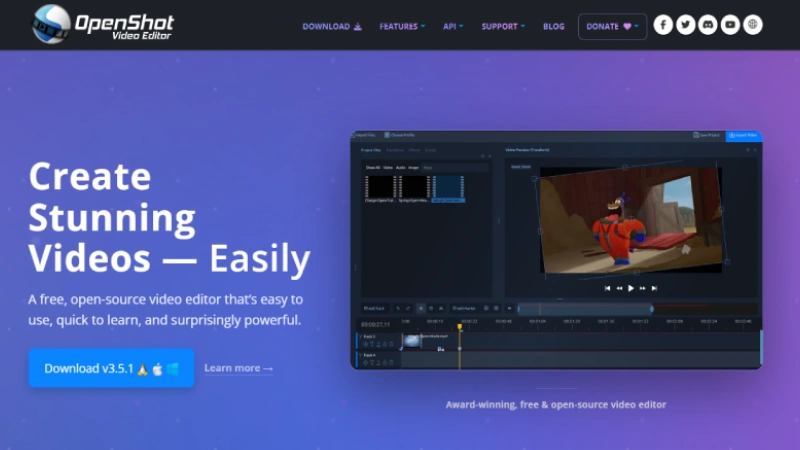
OpenShot is both beginner – friendly and surprisingly full – featured, which is why it consistently ranks among the most recommended free video editors for newcomers. The clean interface does not overwhelm first – time users, while unlimited editing tracks, keyframe animation, title templates, 3D animation integration with Blender, and audio mixing provide room to grow as skills develop.
The drag – and – drop timeline makes basic editing tasks – cutting, trimming, adding music, applying transitions – straightforward for anyone who has never edited video before. The layer editing tools allow unlimited tracks for creating overlays, composites, and picture – in – picture effects. OpenShot is fully open – source, available on every major OS, and exports without any watermarks or quality restrictions.
OpenShot’s performance can degrade significantly on complex 4K projects, and stability issues (occasional crashes) have been reported by users working with longer timelines. The software lacks the audio sophistication of DaVinci Resolve and the AI features of CapCut. For very simple projects and learning the basics of video editing, OpenShot is an excellent starting point. For anything beyond basic editing, Shotcut or DaVinci Resolve offer more reliable performance.
Pros & Cons
| PROS | CONS |
| Completely free, open – source, no watermark | Performance degrades on complex 4K projects |
| Unlimited editing tracks for layered compositions | Occasional stability and crashing issues |
| Beginner – friendly clean interface | No AI features or smart editing tools |
| 3D animation integration with Blender | Audio editing tools are basic |
| Cross – platform: Windows, Mac, Linux | Slower rendering than commercial alternatives |
| Good template library for titles and transitions | Limited advanced color correction |
What the Community Says
“OpenShot is both beginner – friendly and full of tools. Open – source, compatible with any OS, and all tools available for free.” – CyberLink
BEST FOR
Complete beginners, students learning video editing basics, and creators with simple project needs across any operating system.
6. Kdenlive
Our Score: 8.4/10
Quick Facts
| Pricing | Completely free and open – source |
| Platform | Windows, macOS, Linux |
| Watermark | No watermark – ever |
| Max Export | Up to 4K+ |
| Best For | Linux users, growing editors, open – source advocates |
| Developer | KDE Community (Open – Source) |
Detailed Review
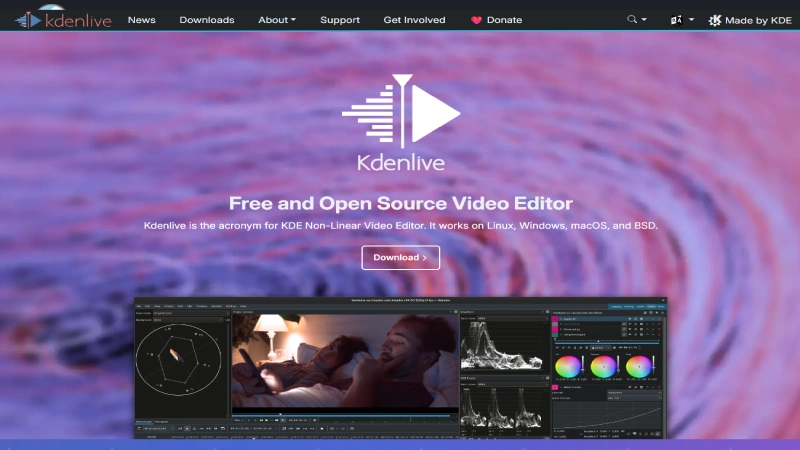
Kdenlive is the free, open – source video editor that feels like a serious long – term editing solution rather than a learning tool you will outgrow. Since 2002, it has built a strong global community and a feature set that competes with mid – level paid software: multi – track timelines, keyframe animation, a full effects library with 100+ transitions and filters, proxy editing for smoother performance, and a modular interface where you can rearrange panels to match your workflow.
The proxy editing feature is particularly valuable for creators working on lower – powered machines – Kdenlive generates lower – resolution proxy files for smooth editing, then renders the final export at full quality. The Windows and Mac builds have improved significantly in recent versions, though Linux remains the platform where Kdenlive runs most reliably. The effects library includes color correction, chroma key, blur, distortion, and audio filters.
While Kdenlive is not as polished as DaVinci Resolve and its interface requires more learning time than CapCut or iMovie, it represents the strongest open – source commitment in the video editing space. Continuous community updates, full transparency, and zero cost make it an excellent choice for creators who value software freedom alongside creative capability.
Pros & Cons
| PROS | CONS |
| Completely free, open – source, no watermark | Linux is the most stable platform – Windows/Mac can have bugs |
| Multi – track timeline with 100+ effects and transitions | Interface less intuitive than commercial editors |
| Proxy editing for smooth performance on slower hardware | Smaller tutorial ecosystem than major tools |
| Modular, customizable workspace interface | Rendering speed slower than GPU – accelerated competitors |
| Strong, active global community | No AI features |
| Available on Windows, Mac, and Linux | Occasional stability issues on non – Linux systems |
What the Community Says
“Kdenlive is a free, open – source editor with a feature set that competes with mid – level paid software. It feels like a serious long – term solution.” – Krock.io
BEST FOR
Linux users, open – source advocates, growing editors who want a tool that scales with their skills, and creators who value software freedom.
READ MORE: 7 Best Blogger Outreach Software in 2026: Complete Comparison Guide
7. Clipchamp (Microsoft)
Our Score: 8.1/10
Quick Facts
| Pricing | Free (built into Windows 10/11) | Premium via Microsoft 365 |
| Platform | Windows 10/11, Web browser |
| Watermark | No watermark on free exports |
| Max Export | Up to 1080p (free) | 4K with Microsoft 365 |
| Best For | Windows users, quick edits, business presentations |
| Developer | Microsoft Corporation |
Detailed Review
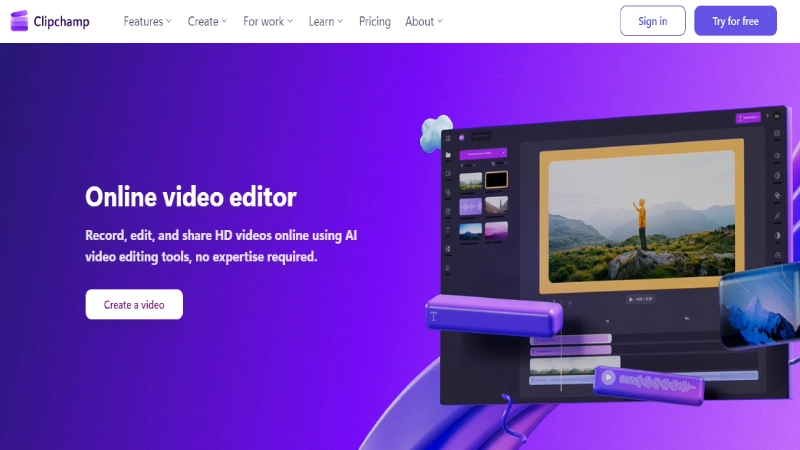
Clipchamp is Microsoft’s answer to iMovie – a free video editor built directly into Windows 10 and 11, requiring zero downloads or installations. If you are on Windows and need to make a quick edit, Clipchamp is already waiting in your Start menu. The template – driven approach makes it easy to create social media posts, presentations, and marketing videos by selecting a template, dropping in your clips, and customizing text and music.
The free version exports at up to 1080p without watermarks, which is sufficient for most social media and web content. Microsoft 365 subscribers unlock 4K export, premium stock footage, and additional AI features. The browser – based architecture means Clipchamp also works on Chromebooks and Mac via a web browser, though the Windows – native experience is smoother.
Clipchamp’s limitations are significant for serious editors: the timeline is simplified, advanced features like multi – track compositing are limited, and the 1080p free export cap excludes 4K creators. It is designed for quick, template – driven content rather than full creative control. For Windows users needing a fast, zero – setup editor for basic projects, Clipchamp serves its purpose well. For anything more demanding, DaVinci Resolve or Shotcut are better free Windows alternatives.
Pros & Cons
| PROS | CONS |
| Built into Windows 10/11 – zero setup required | 1080p export limit on free version (4K needs M365) |
| No watermark on free exports | Limited timeline and multi – track capabilities |
| Template – driven for fast video creation | Not suitable for complex or professional editing |
| Also available in web browser for Chromebooks | Template – dependent workflow limits creative freedom |
| Stock footage and music library included | Less powerful than any other editor on this list |
| Integrated with Microsoft 365 ecosystem | Fewer effects and transitions than open – source alternatives |
What the Community Says
“Clipchamp is right there in your Windows system. If you just need to make a quick edit without downloading anything, it’s the easiest option.” – Krock.io
BEST FOR
Windows users needing quick edits without downloading software, business professionals creating presentations, and casual creators making basic social media content.
8. VSDC Free Video Editor
Our Score: 8.2/10
Quick Facts
| Pricing | Free | Pro version: $19.99/year |
| Platform | Windows only |
| Watermark | No watermark on free version |
| Max Export | Up to 4K |
| Best For | Windows users wanting advanced free features |
| Developer | Flash – Integro LLC |
Detailed Review
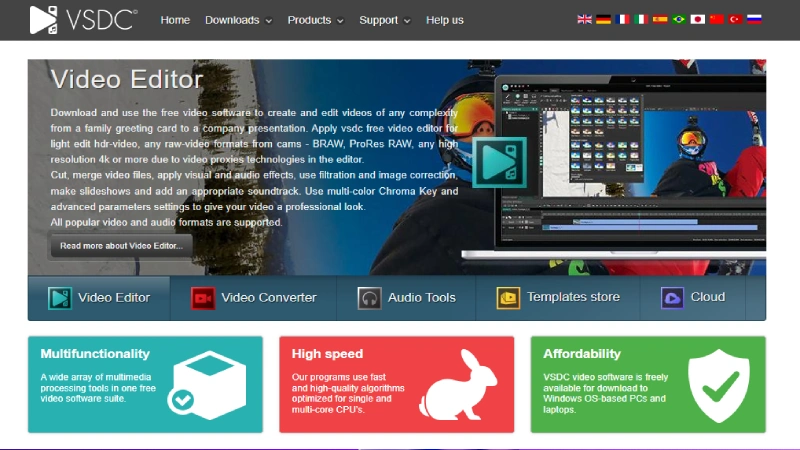
VSDC Free Video Editor is a hidden gem in the free editing space – a Windows – only editor that packs advanced features including color correction, visual effects, motion tracking, masking, chroma key, and audio editing into a completely free package with no watermark. While its interface is less intuitive than CapCut or iMovie, the depth of tools available for zero cost is impressive.
The free version supports 4K export, hardware acceleration for faster rendering, and a range of effects that rival entry – level paid software. The Pro version at just $19.99/year adds stabilization, advanced audio waveform editing, motion tracking, and priority support – making it one of the cheapest paid upgrade paths in the market.
VSDC’s primary drawback is its Windows – only availability and an interface that can feel unintuitive compared to modern editors. The learning curve is moderate – not as steep as DaVinci Resolve, but steeper than CapCut or iMovie. For Windows users who want more capability than Clipchamp offers without the complexity of Resolve, VSDC fills an important gap.
Pros & Cons
| PROS | CONS |
| Completely free with no watermark and 4K export | Windows – only – no Mac or Linux version |
| Advanced features: color correction, chroma key, masking | Interface less intuitive than modern competitors |
| Hardware acceleration for faster rendering | Learning curve for advanced features |
| Pro upgrade at just $19.99/year – cheapest paid option | Smaller community and fewer tutorials |
| Good motion tracking on Pro version | Performance can lag without hardware acceleration |
| Supports wide range of export formats | Less known brand compared to major editors |
What the Community Says
“VSDC is a Windows – only editor offering a feature – rich free version without watermarks. Advanced tools at the cost of a less intuitive interface.” – Flixier
BEST FOR
Windows users who want advanced editing capabilities beyond Clipchamp without paying for or learning DaVinci Resolve.
9. HitFilm (Free)
Our Score: 8.3/10
Quick Facts
| Pricing | Free | Creator: $7.99/mo | Pro: $12.99/mo |
| Platform | Windows, macOS |
| Watermark | No watermark on free exports |
| Max Export | Up to 4K |
| Best For | YouTube creators wanting VFX, sci – fi/action content |
| Developer | FXhome Ltd. |
Detailed Review
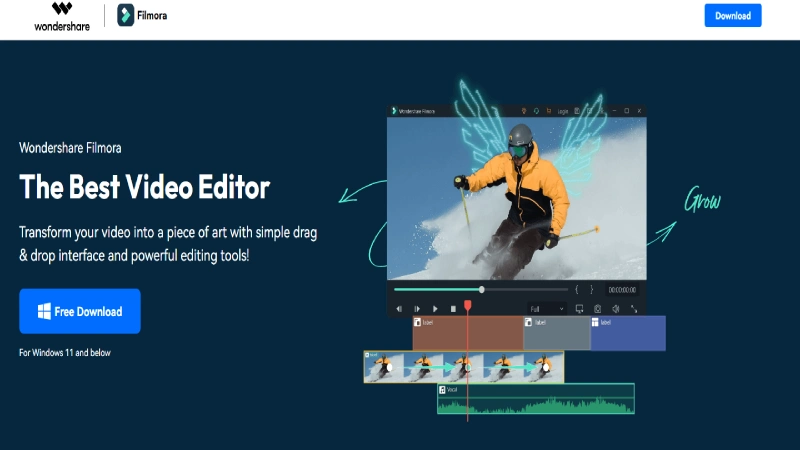
HitFilm uniquely combines video editing with a built – in visual effects (VFX) compositing engine, making it the ideal free tool for YouTube creators who want to add cinematic effects – explosions, lightsabers, green screen composites, particle systems, and 3D text – without needing separate VFX software. The free version includes the core editing timeline and a selection of VFX tools that are genuinely useful for effects – heavy content.
The dual – purpose design means you can edit your video and create visual effects within the same application, eliminating the round – trip between editing and compositing software that professionals typically deal with. The 400+ effects and presets library includes tools specifically designed for the kinds of effects YouTube audiences love – sci – fi, action, horror, and motion graphics.
HitFilm’s editing – only capabilities are less refined than DaVinci Resolve or even Shotcut, and the VFX tools, while impressive for free software, do not match After Effects in depth. The learning curve for VFX features is significant, and the free version locks some advanced effects behind paid tiers. But for creators whose content benefits from visual effects, HitFilm provides a unique combination that no other free editor matches.
Pros & Cons
| PROS | CONS |
| Built – in VFX compositing alongside video editing | Editing features less refined than dedicated editors |
| 400+ effects and presets for cinematic content | VFX tools have a significant learning curve |
| No watermark on free exports up to 4K | Some advanced effects locked behind paid tiers |
| 3D text, particle systems, and green screen included | Requires powerful hardware for VFX rendering |
| Unique niche for effects – heavy YouTube content | Smaller community than DaVinci Resolve or CapCut |
| Available on both Windows and macOS | Interface can feel cluttered with dual editing/VFX modes |
What the Community Says
“HitFilm combines video editing with VFX tools, making it appealing for effects – heavy YouTube content. A unique free offering.” – Flixier
BEST FOR
YouTube creators wanting cinematic VFX, sci – fi and action content producers, and editors who want editing and visual effects in a single free application.
10. VN Video Editor
Our Score: 8.1/10
Quick Facts
| Pricing | Completely free |
| Platform | iOS, Android, Windows, macOS |
| Watermark | No watermark – ever |
| Max Export | Up to 4K (60fps) |
| Best For | Mobile – first editors, on – the – go creators, vloggers |
| Developer | Ubiquiti Labs |
Detailed Review
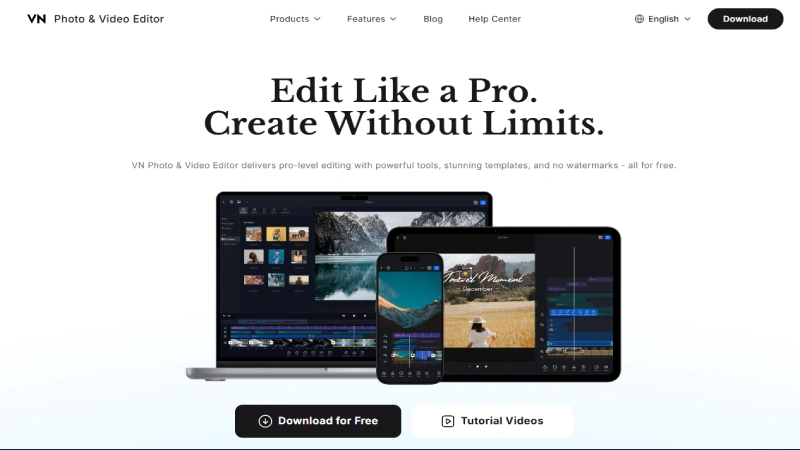
VN Video Editor (also known as VlogNow) is the best free mobile video editor that does not add watermarks – period. While CapCut is more popular, VN delivers a surprisingly professional editing experience on smartphones with multi – track timelines, keyframe animation, speed ramping, LUT color filters, and export up to 4K at 60fps. The desktop versions for Windows and Mac provide an identical feature set, creating a genuine cross – device editing experience.
The app’s interface strikes a smart balance between mobile simplicity and editing depth. Chroma key, picture – in – picture, custom text animations, and curve – based speed controls are all accessible through touch – friendly menus. The fact that all features are free with no watermark, no subscription, and no ad interruptions makes VN arguably the most generous free mobile editor available.
VN’s limitation is its mobile – first design philosophy – while desktop versions exist, they feel like expanded mobile apps rather than native desktop software. Complex long – form projects are better handled in DaVinci Resolve or Shotcut. But for vloggers, travel creators, and on – the – go editors who want to shoot and edit from their phone with professional results, VN is an exceptional choice.
Pros & Cons
| PROS | CONS |
| Completely free with zero watermarks on all platforms | Desktop version feels like an expanded mobile app |
| 4K 60fps export – best – in – class for free mobile editors | Less powerful than DaVinci Resolve for complex projects |
| Multi – track timeline with keyframe animation on mobile | Smaller effect and template library than CapCut |
| Speed ramping and LUT color filters included | No built – in AI features |
| Cross – platform: iOS, Android, Windows, macOS | Community and tutorial resources are limited |
| No ads, no subscription, no premium tiers | Interface can feel cramped on smaller phone screens |
What the Community Says
“VN Video Editor is a strong pick for mobile – first creators. All features free, no watermark, 4K 60fps export – genuinely impressive for a free app.” – Krock.io
BEST FOR
Mobile – first editors, vloggers, travel creators, and anyone who wants to shoot and edit professional – quality video from their phone.
Full Comparison Table: All 10 Free Video Editors
| Editor | Platform | Watermark | Max Export | AI Features | Score |
| DaVinci Resolve | Win/Mac/Linux | None | 4K | Limited (free) | 9.6 |
| CapCut Desktop | All platforms | None (desktop) | 4K | Extensive | 9.2 |
| Shotcut | Win/Mac/Linux | None | 4K+ | None | 8.5 |
| Kdenlive | Win/Mac/Linux | None | 4K+ | None | 8.4 |
| iMovie | macOS/iOS | None | 4K | Basic | 8.3 |
| HitFilm | Win/Mac | None | 4K | Basic | 8.3 |
| VSDC | Windows only | None | 4K | None | 8.2 |
| Clipchamp | Windows/Web | None | 1080p (free) | Templates | 8.1 |
| VN Editor | All platforms | None | 4K 60fps | None | 8.1 |
| OpenShot | Win/Mac/Linux | None | 4K | None | 8.0 |
Quick Decision Guide: Which Free Editor Should You Choose?
IF you have a Mac → Start with iMovie
Pre – installed, zero learning curve, 4K export. Upgrade to DaVinci Resolve when you need more power.
IF you make TikTok/Reels/Shorts → Use CapCut
AI auto – captions, viral templates, trending effects. Edit and post in minutes.
IF you’re serious about learning pro editing → DaVinci Resolve
Hollywood – grade tools, unlimited capability, skills that transfer to paid work. The investment in learning time pays for itself.
IF you have Windows and want something quick → Clipchamp
Already installed on Windows 10/11. Good enough for basic edits without downloading anything.
IF you want the best color grading → DaVinci Resolve (no contest)
The color grading tools in Resolve’s free version are better than what most paid editors offer. Period.
IF you need VFX and effects → HitFilm
Built – in compositing engine with 400+ effects. The only free editor designed for visual effects work.
IF you edit on your phone → VN Video Editor
4K 60fps export, multi – track timeline, zero watermarks, completely free on iOS and Android.
IF you use Linux → Kdenlive or Shotcut
Both are open – source and run natively on Linux. Kdenlive for more power; Shotcut for broader format support.
Frequently Asked Questions (FAQs)
Q1: What is the best free video editor with no watermark in 2026?
DaVinci Resolve is the most powerful free video editor available – used in Hollywood film production, completely free with no watermark, and capable of 4K export. For simpler needs, CapCut (social media), iMovie (Mac users), and Shotcut (cross – platform) are all excellent watermark – free options.
Q2: Is DaVinci Resolve really free?
Yes. 100% free, no watermark, no time limits, no trial period. The free version includes approximately 90% of Studio features. You only need Studio ($295 one – time) for advanced collaboration, 120fps+ timelines, and specific AI tools. Most editors never need the paid version.
Q3: What free video editor do YouTubers use?
Many professional YouTubers use DaVinci Resolve exclusively. CapCut is dominant for short – form content (TikTok, Reels, Shorts). iMovie is popular among Apple – using creators. All three are free with no watermarks on exports.
Q4: Can I edit 4K video for free without a watermark?
Yes. DaVinci Resolve, CapCut Desktop, Shotcut, Kdenlive, OpenShot, VSDC, HitFilm, and VN Video Editor all support watermark – free 4K export on their free versions. Clipchamp limits free exports to 1080p.
Q5: Which free video editor is best for beginners?
iMovie (Mac) and CapCut (all platforms) have the gentlest learning curves – you can create quality videos within hours. OpenShot is the simplest open – source option. DaVinci Resolve is the best long – term investment but requires weeks to master.
Q6: Are free video editors good enough for professional work?
DaVinci Resolve’s free version is used in professional film and television production. Many full – time video editors and content creators use free software exclusively. The quality ceiling of free editors in 2026 is higher than most paid editors were just five years ago.
Final Thoughts: Stop Paying for Video Editing Software You Don’t Need
The era of paying for video editing software is over for 90% of creators. DaVinci Resolve delivers Hollywood – grade editing, color grading, audio mixing, and visual effects at zero cost. CapCut makes social media content creation effortless with AI superpowers. Open – source editors like Shotcut and Kdenlive provide genuine creative capability across every operating system. And platform – specific options like iMovie and Clipchamp are already waiting on your device.
The decision tree is simple: if you make short – form social content, use CapCut. If you want to learn professional editing that translates to paid work, invest your time in DaVinci Resolve. If you need something quick and already installed, use iMovie (Mac) or Clipchamp (Windows). And if you value open – source software, Shotcut and Kdenlive deliver more power than you might expect.
Stop searching for the perfect free editor and start creating. Every tool on this list exports without a watermark, supports high – quality output, and costs nothing to download. The only investment required is your time and creativity – and that’s the investment that actually determines whether your videos succeed.
