

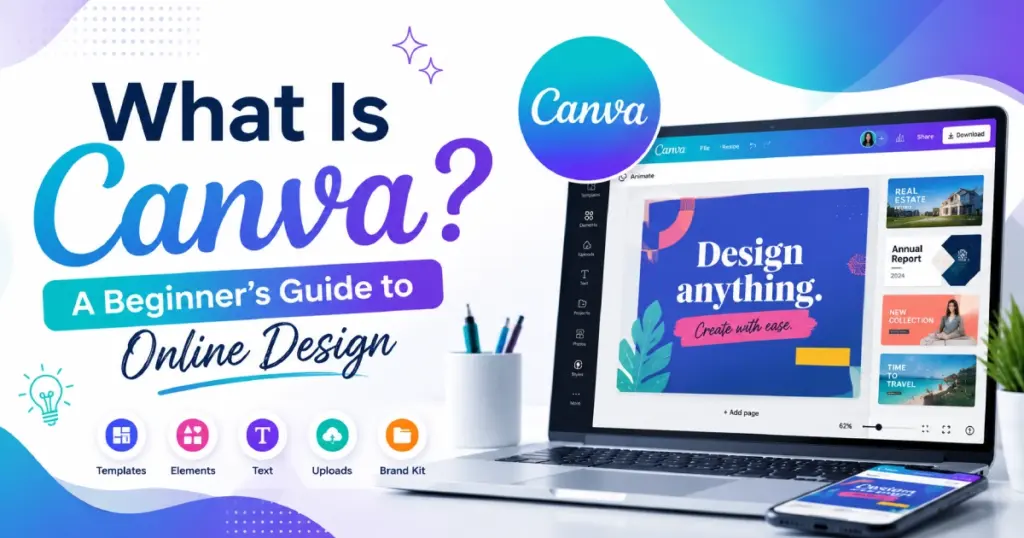
Canva is a cloud-based graphic design platform that enables anyone to create professional-quality visual content using a drag-and-drop editor, thousands of pre-designed templates, millions of stock assets, and AI-powered design tools. Since launching in 2013, Canva has grown from a simple design app for non-designers into a comprehensive visual content platform used by students, solopreneurs, Fortune 500 marketing teams, educators, and nonprofits worldwide.
The Jotform Blog described it well: Canva is approachable without being too simplistic, powerful without being hard to learn, and flexible without burying you with options. Style Factory Productions reported that as of January 2026, Canva boasts over 260 million monthly active users in over 190 countries, with over 30 billion designs created and 5,500+ employees. AppsTimes noted that Canva has democratized graphic design for millions of users who lack formal design training yet need professional visuals daily.
Unlike traditional design software like Adobe Photoshop or Illustrator (which require months of learning), Canva’s intuitive editor requires no tutorials – drag elements onto the canvas, resize by pulling corners, change colors by clicking, edit text by typing. You can create your first design within minutes of creating a free account. Canva works entirely in your web browser (no download required) and also offers apps for Mac, PC, Chromebook, iOS, and Android.
What Can You Create with Canva? (Almost Everything)
Social Media Content
Instagram posts and stories, Facebook covers and ads, LinkedIn banners, Twitter/X headers, Pinterest pins, TikTok thumbnails, YouTube thumbnails and channel art. Canva provides platform-specific dimensions automatically – choose “Instagram Post” and the canvas is already sized at 1080×1080px. Templates for every platform and content type make social media design a matter of minutes rather than hours.
Presentations
Canva offers 20,050+ presentation templates (as of January 2026) in 16:9, 4:3, and mobile-first formats. Style Factory noted that Canva’s presentation interface is much easier to use than PowerPoint, with a much bigger template range (vs. PowerPoint’s ~30 out-of-the-box templates). Built-in presentation mode with speaker notes, timer, and recording makes Canva competitive with PowerPoint and Keynote.
Marketing Materials
Flyers, posters, brochures, business cards, letterheads, menus, newsletters, email headers, banner ads, infographics, and more. Marketing teams use Canva’s Brand Kit to maintain visual consistency across all materials. Capterra reviews show that 64% of reviewers rated template variety as important or highly important for their workflow.
Documents
Canva Docs brings design tools to document creation with 1,900+ document templates: project proposals, press releases, style guides, student journals. Documents export to Word or PDF format. Unlike plain Google Docs or Word, Canva Docs combine rich visuals with text content for documents that stand out visually.
Videos and Animations
Canva includes a built-in video editor with stock video, audio, transitions, and animations. Create social media videos, animated presentations, short ads, and GIF content directly within the platform. While not as powerful as dedicated video editors like Premiere Pro, Canva’s video tools are sufficient for most social media and marketing video needs.
Print Products
Canva Print delivers physical products – business cards, posters, flyers, mugs, t-shirts, invitations, and more – shipped directly to your address. Design digitally, order physically, without leaving the platform. This end-to-end design-to-delivery workflow is unique among online design tools.
Websites
Canva now includes basic website building: create one-page websites with custom domains, responsive layouts, and Canva’s design aesthetic. While not a replacement for WordPress or Wix for complex sites, Canva websites work well for landing pages, portfolio pages, and simple informational sites.
Core Features Explained for Beginners
1. Drag-and-Drop Editor
The foundation of Canva’s accessibility. The eComm.Design review called it one of the most intuitive design platforms ever used – everything is visual, with drag-and-drop functionality, and the interface guides you through the design process step by step. A grid and snapping system keeps designs aligned. Undo and history tracking lets you experiment without risk. The left-hand toolbar is clearly organized by categories: text, images, elements, and uploads.
2. Templates (Thousands of Starting Points)
Canva’s template library is its most celebrated feature. Millions of professionally designed templates cover every conceivable use case: social media, presentations, marketing materials, documents, videos, websites, and print products. Templates are not static – every element (text, images, colors, layout) is fully customizable. Style Factory confirmed 20,050+ presentation templates alone. Expert designers create templates that teach good design principles by example.
3. Stock Library (Photos, Videos, Graphics, Audio)
Canva includes access to millions of royalty-free stock photos, videos, illustrations, icons, shapes, frames, and audio tracks. The free plan provides a generous selection; Pro unlocks the full library of 100+ million premium assets. This eliminates the need for separate stock photo subscriptions (Shutterstock, iStock) for most users, saving $29–$49/month in standalone stock photo costs.
4. Brand Kit (Consistency at Scale)
Brand Kit stores your logos, brand colors, fonts, and templates in one place. Apply your brand identity to any design with one click. Team members access shared brand assets, preventing off-brand designs. AppsTimes noted that Brand Kit ensures all marketing materials match visual identity perfectly, making it excellent for marketing teams, agencies, and remote workers. Brand Kit is available on Pro and Teams plans.
5. AI-Powered Design Tools
Canva has leaned heavily into AI in recent updates. Magic Write generates text content (headlines, descriptions, captions) in different tones. Magic Edit removes or replaces photo elements. Magic Eraser eliminates unwanted objects. Background Remover isolates subjects instantly. Magic Resize reformats designs for different platforms with one click – turn an Instagram post into a Facebook cover, Pinterest pin, and Twitter header automatically. Capterra confirmed that Magic Media transforms text prompts into photorealistic visuals using Leonardo.AI’s Phoenix model.
6. Real-Time Collaboration
Multiple team members can edit designs simultaneously, seeing each other’s cursors and changes in real-time (like Google Docs). Comment threads let you discuss specific design elements, assign tasks, and approve designs without email chains. Version history tracks changes, enabling rollbacks. These collaboration features earned Canva praise from Capterra reviewers who highlighted it as unmatched in collaborative capability for design teams.
7. Apps Marketplace (300+ Integrations)
As of January 2026, Style Factory found 300 available apps in Canva’s Marketplace. These include special effects, image retouching, AI image/video/audio generation tools, and integrations with platforms like Google Drive, Dropbox, HubSpot, Mailchimp, and social media scheduling tools. The marketplace extends Canva’s functionality far beyond basic design.
Canva Pricing Plans Explained
| Feature | Free | Pro ($119.99/yr) | Teams ($100/yr/person) |
| Templates | 250,000+ | Millions (premium) | Millions + Brand Templates |
| Stock Assets | 1M+ free | 100M+ premium | 100M+ premium |
| Storage | 5GB | 1TB | 1TB per person |
| Brand Kit | Limited | Full (1 kit) | Multiple brand kits |
| Magic Resize | No | Yes | Yes |
| Background Remover | No | Yes | Yes |
| AI Tools | Basic | Full suite | Full suite + admin |
| Collaboration | Basic sharing | Comments + links | Full team management |
| Custom Fonts | No | Yes | Yes |
| Best For | Beginners, students | Freelancers, creators | Teams, businesses |
The free plan is genuinely generous: 250,000+ templates, 1 million+ free stock assets, 5GB storage, basic collaboration, and all core design tools. Software Advice confirmed that users find the free version cost-effective and appreciate the available free templates and tools. Most casual users and students never need to upgrade.
Canva Pro ($119.99/year or approximately $13/month) adds the full premium template and stock library (100M+ assets), Brand Kit, Magic Resize, Background Remover, the full AI tool suite, 1TB storage, and custom font uploads. For freelancers and content creators, Pro eliminates the need for separate stock photo subscriptions and resizing tools, potentially saving more than the Pro subscription costs.
Canva for Teams ($100/year per person, minimum 3) adds multiple brand kits, team management with roles and permissions, shared brand templates, approval workflows, and collaborative workspaces. For businesses with marketing teams, the per-person pricing makes Teams more affordable than Pro for groups of 3+.
Getting Started: Your First Design in 5 Minutes
Step 1: Create Your Free Account
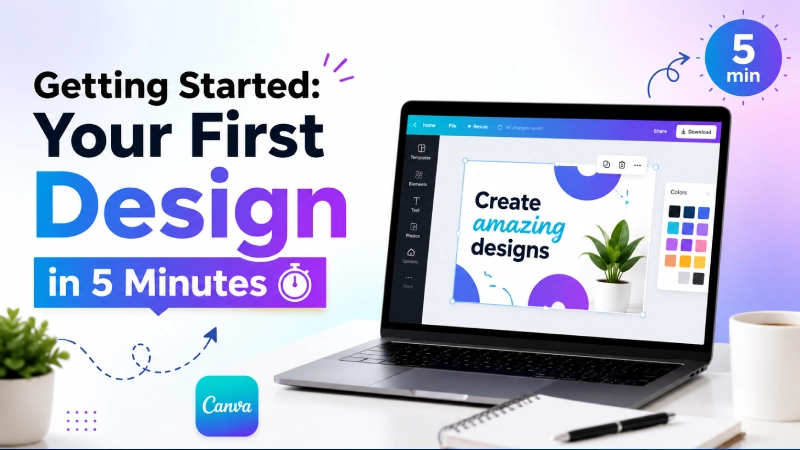
Visit canva.com and sign up with Google, Facebook, Apple, or email. No credit card required for the free plan. Your account works across web browser and all Canva apps (Mac, PC, iOS, Android, Chromebook).
Step 2: Choose What to Create
Click “Create a design” on the homepage. Choose from suggested sizes (Instagram Post, Presentation, Resume, etc.) or enter custom dimensions. Canva automatically sets the correct canvas size for your chosen format.
Step 3: Start with a Template (Recommended for Beginners)
Browse the template panel on the left side of the editor. Use keywords to search (e.g., “minimalist business card” or “bold social media”). Click any template to apply it to your canvas. Every element in the template is fully editable. Canva’s official beginner guide notes that expert-designed templates show you good design principles in practice and what’s possible with Canva.
Step 4: Customize Your Design
Click any text to edit it. Click any image to replace, resize, or reposition it. Use the left toolbar to add new elements: text, photos, graphics, shapes, frames, videos, or audio. Change colors by clicking elements and choosing from the color picker. Adjust transparency, add filters, crop images, and apply effects – all with simple clicks.
Step 5: Download or Share
Click “Share” to generate a link, invite collaborators, or publish directly to social media. Click “Download” to export as PNG, JPG, PDF, MP4 (video), GIF, or SVG. Choose quality settings and transparent backgrounds (Pro feature). Your design is also saved automatically in your Canva account for future editing.
Canva Pros & Cons: The Honest Assessment
| PROS | CONS |
|---|---|
| ✓ 260M+ users – most popular design platform globally | ✗ Premium elements locked behind Pro ($119.99/yr) |
| ✓ Genuinely generous free plan for casual users | ✗ Complex designs may require more advanced software |
| ✓ Intuitive drag-and-drop – no design experience needed | ✗ Templates can feel repetitive without customization |
| ✓ Millions of templates covering every use case | ✗ Requires internet connection – limited offline capability |
| ✓ 100M+ premium stock assets (Pro) | ✗ Video editing not as robust as dedicated tools |
| ✓ AI tools: Magic Write, Edit, Eraser, Resize, Background Remover | ✗ Mobile app lacks some desktop functionality |
| ✓ Real-time collaboration like Google Docs | ✗ Can feel slow on older devices with complex designs |
| ✓ Brand Kit for visual consistency | ✗ No true layer management like Photoshop |
| ✓ Built-in presentation, video, document, and website tools | ✗ Download speed can be slow for large files |
| ✓ Canva Print for physical products delivered to your door | ✗ Some advanced typography controls missing |
Who Should Use Canva? (And Who Shouldn’t)
Canva is perfect for:
Non-designers who need professional-looking visuals for social media, presentations, or marketing. Small business owners who cannot afford or justify Adobe Creative Cloud ($59.99/month). Students who need the free plan for school projects, presentations, and portfolios. Content creators and influencers producing daily visual content across platforms. Marketing teams who need brand consistency without hiring a full-time designer. Educators creating engaging classroom materials. Nonprofits (Canva for Nonprofits provides free Pro access).
Canva is NOT ideal for:
Professional graphic designers who need advanced tools like vector editing, layer management, CMYK color profiles, and pixel-level precision. Photographers who need RAW file editing and advanced color grading. Print designers who require bleed marks, spot colors, and press-ready PDF/X output. Video editors who need multi-track timelines, advanced effects, and professional color grading. Users without reliable internet access (Canva is cloud-dependent).
Canva vs. Alternatives: How It Compares
| Feature | Canva | Adobe Express | Figma | PowerPoint |
| Pricing | Free / $120/yr | Free / $10/mo | Free / $15/mo | $70/yr (M365) |
| Learning Curve | Very Easy | Easy | Moderate | Easy |
| Templates | Millions | Thousands | Limited | ~30 built-in |
| AI Tools | Extensive | Firefly AI | Limited | Copilot |
| Collaboration | Real-time | Basic | Real-time | Real-time |
| Video Editing | Built-in | Basic | No | No |
| Best For | Everyone | Adobe users | UI/UX design | Office users |
Canva occupies a unique position: more powerful than basic tools (PowerPoint, Google Slides) but more accessible than professional software (Photoshop, Illustrator, Figma). eComm.Design concluded that Canva covers 90% of what most businesses need to produce high-performing content at scale. For the remaining 10% requiring pixel-level precision or advanced print production, professional tools are still necessary.
Frequently Asked Questions
Q1: Is Canva really free?
Yes. Canva’s free plan is genuinely free with no time limit: 250,000+ templates, 1 million+ stock assets, 5GB storage, and all core design tools. You never need to upgrade for basic design work. Premium elements are marked with a crown icon – everything without a crown is free. Pro ($119.99/year) adds premium assets, Brand Kit, Magic Resize, and advanced AI tools.
Q2: Do I need design experience to use Canva?
No. Canva is specifically built for people without design training. The drag-and-drop editor, professionally designed templates, and intuitive interface mean you can create your first professional-looking design within minutes of signing up. Capterra’s 1,600+ reviews consistently highlight that Canva is extremely user-friendly, even for beginners.
Q3: Can Canva replace Adobe Photoshop or Illustrator?
For most non-designers and small businesses, Canva handles 90% of design needs that would previously require Photoshop or Illustrator. However, Canva cannot replace these tools for professional graphic design requiring vector editing, layer management, CMYK color profiles, RAW photo editing, or pixel-level precision. Professional designers typically use Canva alongside Adobe tools, not instead of them.
Q4: Is Canva good for business use?
Yes. With 260+ million users, Brand Kit for consistency, team collaboration features, and Canva for Teams pricing ($100/year per person), Canva is widely used by businesses from solopreneurs to Fortune 500 companies. Capterra rates it 4.7/5 with 7 out of 10 reviews from companies with 1–10 employees, showing it is particularly popular with small businesses.
Q5: Can I use Canva offline?
Limited. Canva is primarily cloud-based and requires an internet connection for most features. The desktop app offers some offline capability for previously opened designs, but you cannot access templates, stock assets, or collaborative features without internet. This is Canva’s most commonly cited limitation.
Q6: What file formats can I export from Canva?
Canva exports to PNG, JPG, PDF (standard and print-quality), SVG (Pro), MP4 (video), GIF, and PPTX (PowerPoint). The PDF export includes options for print-quality output with crop marks. Transparent backgrounds are available on Pro plans. You can also share designs via link, embed code, or publish directly to social media platforms.
Final Thoughts
Before Canva, creating a professional social media graphic meant either hiring a designer, learning Photoshop over months, or settling for ugly, amateurish visuals. Canva erased that barrier. With 260+ million monthly users creating 30+ billion designs, Canva has transformed design from a specialist skill into an accessible capability for everyone – from students creating school presentations to Fortune 500 marketing teams producing brand-consistent content at scale.
The platform’s genius is that it grows with you. Start with the free plan and templates. As you gain confidence, explore custom designs, AI tools, and brand consistency features. If you need team collaboration and premium assets, upgrade to Pro or Teams. The learning curve from “I’ve never designed anything” to “I create professional content daily” is measured in hours, not months.
Start by creating a free account at canva.com. Pick a template for whatever you need – a social media post, a presentation, a flyer. Customize it with your text and images. Download or share it. Within five minutes, you will have created your first professional design. That is the Canva experience, and it is why a quarter of a billion people use it every month.
