

The remote desktop software market reached $3.9 billion in 2025 and is projected to hit $14.73 billion by 2034. Whether you need to access your office PC from home, provide IT support across time zones, or control your creative workstation from an iPad, we tested and compared the 10 best remote desktop tools for every use case and budget.
Quick Verdict: Our Top 4 Remote Desktop Picks
| Software | Best For | Pricing | Score |
|---|---|---|---|
| TeamViewer | Enterprise IT | Free / $24.90+/mo | 9.4/10 |
| Splashtop | Best Value | $5/mo | 9.3/10 |
| AnyDesk | Fastest Connection | Free / $14.90+/mo | 9.0/10 |
| Zoho Assist | IT Support | Free / $10+/mo | 8.8/10 |
Remote work has permanently reshaped how businesses operate. The remote desktop software market reached $3.9 billion in 2025 and is projected to grow to $14.73 billion by 2034 at a 17.3% CAGR, according to Fortune Business Insights and industry research. Global digital jobs are expected to grow 25% by 2030 (World Economic Forum), with the majority relying on remote access to manage devices across multiple locations.
Remote desktop software serves multiple critical functions: accessing your office PC from home without transferring files to the cloud, providing IT support to colleagues or clients without being physically present, managing servers and enterprise endpoints across geographies, running licensed applications that are bound to specific machines, and enabling creative professionals to use powerful desktop workstations from lightweight laptops or tablets. But not all remote desktop tools are equal. Speed, security, pricing, platform support, and use-case optimization vary dramatically. This guide evaluates 10 remote desktop solutions using data from Gartner Peer Insights, G2 (market leader reviews), TechRadar (free and paid reviews), EXPERTE.com (independent testing), GetApp (93+ tools compared), and real user reviews across multiple platforms.
How We Tested and Evaluated
Our evaluation synthesizes expert reviews and user data from six major sources. Key criteria: Connection Speed and Latency (how responsive the remote session feels), Security Infrastructure (encryption standard, authentication, compliance certifications), Platform Support (which operating systems work as host and client), Feature Depth (file transfer, remote printing, multi-monitor, session recording, collaboration), Pricing and Value (cost per user/computer, free tier availability and limitations), Ease of Setup (time from download to first connection), and Use Case Fit (personal access, IT support, enterprise management, mobile access). Each tool was evaluated for its specific strengths rather than applying a one-size-fits-all scoring model.
In-Depth Reviews: 10 Best Remote Desktop Software for 2026
1. TeamViewer
The Industry Standard for Remote Access with 2.5+ Billion Device Connections and Enterprise Security
Our Score: 9.4/10
Quick Facts
| Pricing | Free (personal) | Remote Access: $24.90/mo | Business: $50.90/mo | Premium: $112.90/mo |
| Platforms | Windows, macOS, Linux, iOS, Android, ChromeOS, Raspberry Pi |
| Key Features | Unattended access, file transfer, remote printing, session recording, multi-monitor |
| Security | AES-256 encryption, 2FA, trusted devices, SOC 2 compliant |
| Best For | IT support teams, enterprises, cross-platform remote access |
| Free Plan | Yes – personal/non-commercial use |
Detailed Review
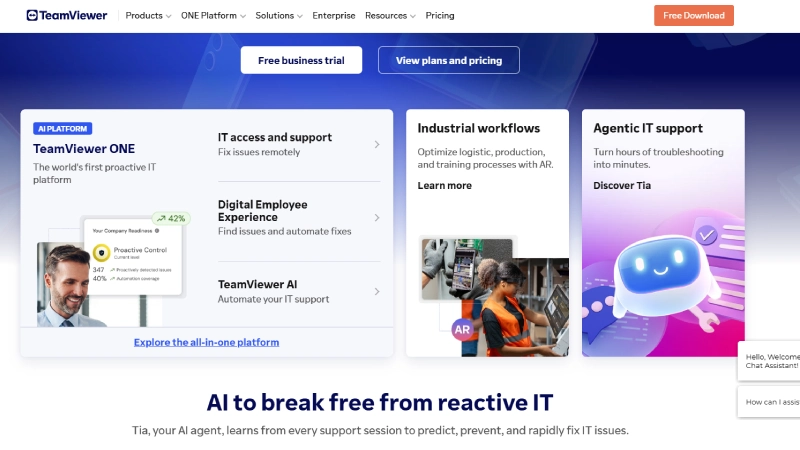
TeamViewer is the most widely recognized name in remote desktop software, connecting over 2.5 billion devices worldwide. Gartner Peer Insights, G2, and GetApp consistently rank TeamViewer among the top remote desktop solutions for enterprises. The software’s strength lies in its universal cross-platform support: you can connect from virtually any device to any other device, regardless of operating system. The connection is established in seconds using a simple ID and password system that even non-technical users can understand.
The enterprise feature set is comprehensive: unattended access for IT teams managing hundreds of endpoints, file transfer with drag-and-drop, remote printing from the connected machine, session recording for compliance, multi-monitor support, and integrated chat and whiteboard for collaboration. The security infrastructure includes AES-256 encryption, two-factor authentication, trusted device lists, and SOC 2 compliance. TeamViewer has also added augmented reality (AR) capabilities for remote field support, allowing technicians to guide on-site workers using AR annotations overlaid on the camera feed.
TeamViewer’s pricing structure has shifted aggressively toward enterprise subscriptions, making it expensive for small businesses or freelancers who need it professionally but not at enterprise scale. The free personal license is increasingly restrictive – sessions may be flagged and limited if TeamViewer’s algorithms detect possible commercial use. Some users report connection timeouts and session interruptions on the free tier. But for IT departments, MSPs, and enterprises needing a proven, feature-complete remote access solution, TeamViewer remains the industry benchmark.
Pros & Cons
| PROS | CONS |
|---|---|
| 2.5+ billion device connections worldwide | Expensive for small businesses ($50.90/mo Business) |
| Universal cross-platform support (Win/Mac/Linux/mobile) | Free tier increasingly restrictive |
| Unattended access for enterprise IT management | Possible commercial use detection on personal license |
| AES-256 encryption with SOC 2 compliance | Connection timeouts reported on free tier |
| AR capabilities for remote field support | Complex licensing tiers |
| Session recording, file transfer, remote printing | Heavier resource usage than lightweight alternatives |
What the Community Says
“TeamViewer Remote facilitates secure, instant access to computers globally, enhancing productivity with seamless integration across all platforms.” – Gartner Peer Insights
BEST FOR: IT support teams, enterprise IT management, MSPs managing multiple client endpoints, and cross-platform remote access needs.
2. AnyDesk
The Ultra-Lightweight Remote Desktop with Sub-16ms Latency and DeskRT Video Codec
Our Score: 9.0/10
Quick Facts
| Pricing | Free (personal) | Solo: $14.90/mo | Standard: $29.90/mo | Advanced: $79.90/mo |
| Platforms | Windows, macOS, Linux, Android, iOS, ChromeOS, Raspberry Pi |
| Key Features | Ultra-low latency, lightweight client (3MB), address book, whiteboard, file manager |
| Security | AES-256 TLS 1.2 encryption, 2FA, whitelisting, session logging |
| Best For | Speed-sensitive connections, low-bandwidth environments, individual professionals |
| Free Plan | Yes – personal use with basic features |
Detailed Review
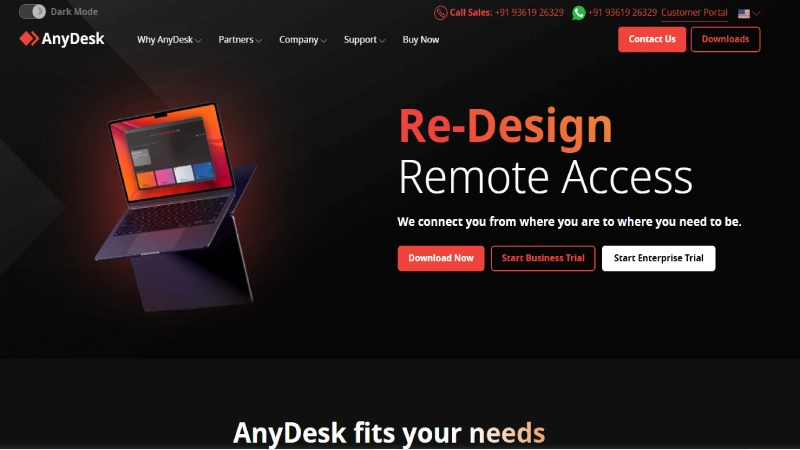
AnyDesk was founded by former TeamViewer engineers with a specific mission: build the fastest possible remote desktop. The proprietary DeskRT video codec compresses and transmits screen data with remarkable efficiency, achieving sub-16ms latency that makes remote sessions feel nearly indistinguishable from local use. The entire client application is approximately 3MB, meaning it can run from a USB stick without installation and starts nearly instantly.
The interface received a major overhaul in version 7, introducing a cleaner desktop layout with session tools organized in a tidy toolbar. The built-in file manager handles transfers between host and remote machines. TechRadar and EXPERTE.com highlighted AnyDesk’s address book system for organizing frequently accessed computers, and the collaboration tools (text chat, whiteboard, multi-user sessions) make it effective for support scenarios. AnyDesk serves 120,000+ customers globally.
AnyDesk lacks the drag-and-drop file transfer that TeamViewer offers – you must use the built-in file manager instead. The free tier is limited to personal use and basic features. Enterprise features like session logging and custom branding require the Advanced plan ($79.90/month). But for individuals and small teams who prioritize connection speed and minimal resource usage, AnyDesk’s lightweight design and DeskRT codec deliver the most responsive remote desktop experience available.
Pros & Cons
| PROS | CONS |
|---|---|
| Sub-16ms latency with proprietary DeskRT codec | No drag-and-drop file transfer |
| Ultra-lightweight client (~3MB, runs from USB) | Free tier limited to basic features |
| AES-256 TLS 1.2 encryption | Enterprise features require expensive Advanced plan |
| Clean interface after v7 redesign | Smaller brand recognition than TeamViewer |
| Address book for organizing remote connections | Custom branding only on highest tier |
| Free for personal use | Session logging requires paid plans |
What the Community Says
“AnyDesk promises as little latency as possible with 256-Bit AES transport encryption. Available for all common operating systems including Raspberry Pi.” – EXPERTE.com
BEST FOR
Speed-sensitive remote sessions, low-bandwidth environments, individual professionals, and users wanting the lightest possible client.
3. Splashtop
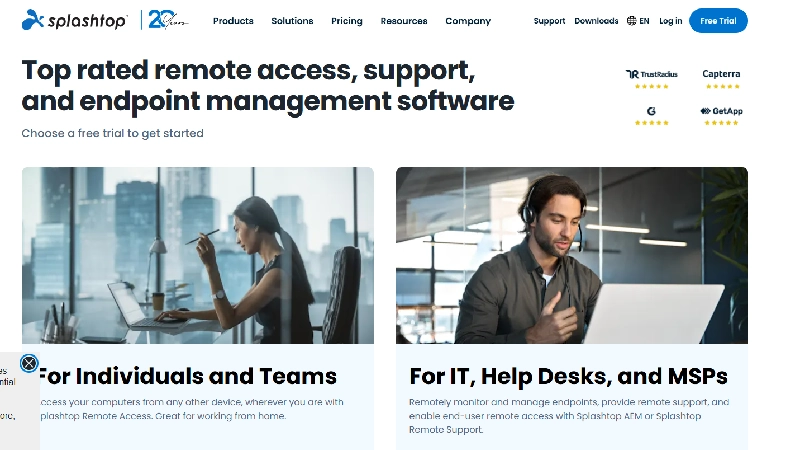
The Best Value Remote Desktop with NPS Score of 93 and Up to 90% Savings vs. Competitors
Our Score: 9.3/10
Quick Facts
| Pricing | Business Access Solo: $5/mo | Business Access Pro: $8.25/mo | Enterprise: custom |
| Platforms | Windows, macOS, Linux, iOS, Android, Chromebook |
| Key Features | High-performance streaming, file transfer, remote print, wake-on-LAN, multi-monitor |
| Security | AES-256, TLS, 2FA, device authentication, ISO 27001, SOC 2, GDPR |
| Best For | Business professionals, remote workers, education institutions |
| Free Plan | No – but free trial available |
Detailed Review
Splashtop consistently earns the highest user satisfaction ratings in the remote desktop category. The NPS (Net Promoter Score) of 93 is exceptional by any software standard, and Splashtop claims up to 90% cost savings compared to competitors – at $5/month for Business Access Solo, the pricing genuinely undercuts TeamViewer and AnyDesk by significant margins while offering comparable features. Gartner Peer Insights and G2 both rank Splashtop highly for performance, reliability, and security.
The remote desktop streaming quality is optimized for high-definition and 4K displays, making it suitable for creative professionals who need to access design applications, video editing software, or CAD programs remotely. File transfer, remote printing, wake-on-LAN (wake your office computer from your phone), multi-monitor support, and session recording are all included. The security certifications are enterprise-grade: ISO 27001, SOC 2, and GDPR compliance with AES-256 encryption and TLS transport security.
Splashtop lacks a free tier for personal use – unlike TeamViewer, AnyDesk, or Chrome Remote Desktop. The user interface, while functional, is less modern than some competitors. Managing large teams requires the Enterprise tier with custom pricing. Connection stability has occasional inconsistencies reported by reviewers. But for the price-to-feature ratio, Splashtop delivers the strongest value proposition in the paid remote desktop market.
Pros & Cons
| PROS | CONS |
|---|---|
| NPS score of 93 – highest user satisfaction | No free tier for personal use |
| $5/mo Business Access – up to 90% cheaper than competitors | UI less modern than some competitors |
| ISO 27001, SOC 2, GDPR compliant | Enterprise pricing not transparent |
| 4K/HD streaming for creative professionals | Occasional connection stability issues |
| Wake-on-LAN to start remote computer remotely | Large team management requires Enterprise plan |
| Cross-platform including Chromebook support | Mobile app experience could be smoother |
What the Community Says
“Splashtop is consistently rated as the best remote desktop software by third-party reviewers and peer review sites. NPS score of 93 with highest ‘likely to recommend’ score.” – Splashtop / Gartner
BEST FOR
Business professionals on a budget, remote workers needing daily access, education institutions, and creative professionals needing high-quality streaming.
4. Chrome Remote Desktop
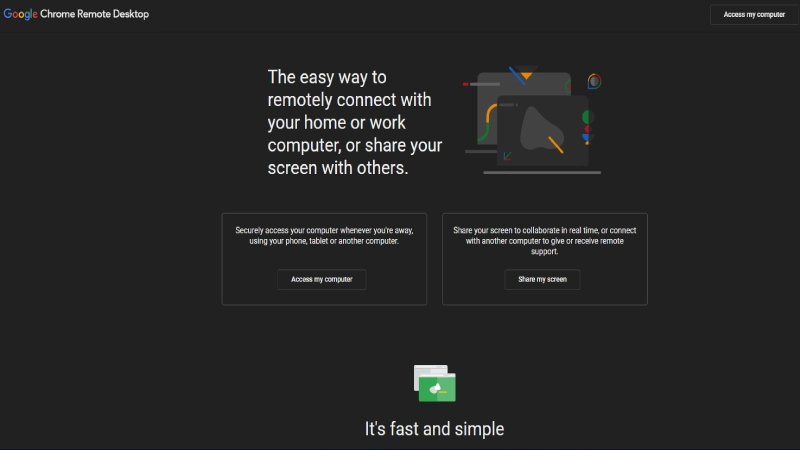
Google’s Completely Free Remote Desktop That Works from Any Chrome Browser
Our Score: 8.0/10
Quick Facts
| Pricing | Completely free – no limits |
| Platforms | Any device with Chrome browser + Android/iOS apps |
| Key Features | Browser-based access, simple setup, unattended access, screen sharing |
| Security | Google account authentication, encrypted connections |
| Best For | Personal use, quick access, non-technical users, Chromebook owners |
| Free Plan | 100% free with no restrictions |
Detailed Review
Chrome Remote Desktop is the simplest way to access your computer remotely – and it costs absolutely nothing. Installation takes under two minutes: install the Chrome Remote Desktop extension, set a PIN for unattended access, and you can connect from any Chrome browser on any device in the world. There are no account creation hassles beyond your existing Google account, no subscription tiers to navigate, and no feature gating. For personal users who just need to occasionally access their home or work computer, this simplicity is unmatched.
The browser-based approach means you can connect from a public computer, a friend’s laptop, or any device with Chrome installed – no client software needed on the connecting device. Android and iOS apps provide mobile access. The connection uses Google’s encrypted infrastructure. For screen sharing during support sessions, you can generate a one-time code that someone else uses to connect to your machine (or vice versa).
Chrome Remote Desktop lacks virtually every advanced feature that IT professionals need: no file transfer, no remote printing, no multi-monitor management, no session recording, no address book, no chat, no whiteboard, and no mobile-to-desktop connection. EXPERTE.com noted it cannot compete with the feature range of dedicated solutions. Performance can lag compared to native clients like AnyDesk or Splashtop. But for the price of free and the simplicity of Chrome, it serves personal remote access needs effectively.
Pros & Cons
| PROS | CONS |
|---|---|
| 100% free with no restrictions | No file transfer capability |
| Setup in under 2 minutes | No remote printing |
| Works from any Chrome browser – no client needed | No multi-monitor management |
| Google account authentication | No session recording or collaboration tools |
| Android and iOS mobile apps | Performance lags behind native clients |
| Unattended access with PIN | Cannot connect to mobile devices from desktop |
What the Community Says
“Chrome Remote Desktop is geared primarily towards Chrome users looking for an easy and free way to access computers from anywhere. Cannot compete with the feature range of dedicated solutions.” – EXPERTE.com
BEST FOR
Personal users needing occasional free remote access, non-technical users, Chromebook owners, and anyone wanting the simplest possible setup.
5. Microsoft Remote Desktop (RDP)
The Built-In Windows Solution with Enterprise-Grade Protocol and Zero Additional Cost
Our Score: 8.4/10
Quick Facts
| Pricing | Free – built into Windows Pro/Enterprise (not available on Home edition) |
| Platforms | Windows (host) | Windows, macOS, iOS, Android clients |
| Key Features | Native Windows integration, multi-monitor, Azure AD, NLA, load balancing |
| Security | NLA, TLS encryption, Azure Active Directory integration |
| Best For | Windows-centric enterprises, IT administrators, Azure users |
| Free Plan | Included with Windows Pro/Enterprise license |
Detailed Review
Microsoft Remote Desktop leverages the RDP (Remote Desktop Protocol) that is built directly into Windows Pro and Enterprise editions. For organizations already on Microsoft infrastructure, this means zero additional software cost, zero additional licensing, and deep integration with Active Directory, Azure AD, and Windows security policies. G2 highlighted that RDP ensures low latency and smooth interactions with built-in high availability and load balancing – features that third-party solutions charge premium prices for.
Network Level Authentication (NLA) adds a security layer before the remote session is established, and TLS encryption protects data in transit. Multi-monitor support, clipboard sharing, audio redirection, and printer redirection work natively. Remote Desktop Services (RDS) extends this to server-based scenarios where multiple users connect to a shared server environment. For IT administrators managing Windows fleets, RDP is often the primary remote access tool.
RDP is only available as a host on Windows Pro and Enterprise editions – Windows Home users cannot use their computer as a remote host (they can connect to other machines, but not receive connections). The setup requires configuring network settings, port forwarding, or a VPN for external access – far more complex than TeamViewer or AnyDesk’s ID-and-password approach. Linux and macOS cannot serve as hosts. But for Windows-centric environments where the infrastructure already exists, RDP provides enterprise-grade remote access at no additional cost.
Pros & Cons
| PROS | CONS |
|---|---|
| Built into Windows Pro/Enterprise – zero additional cost | Not available on Windows Home edition |
| Native integration with Active Directory and Azure AD | Complex setup for external access (port forwarding/VPN) |
| NLA security + TLS encryption | Windows-only hosting – no Mac/Linux hosts |
| Multi-monitor, audio, printer redirection | No simple ID-and-password connection model |
| Load balancing for enterprise environments | Firewall configuration required |
| No third-party software dependencies | Vulnerable to brute-force if exposed without VPN |
What the Community Says
“Remote Desktop Protocol ensures low latency and smooth interactions with built-in high availability and load balancing. Azure AD integration makes remote sign-in seamless.” – G2
BEST FOR
Windows-centric enterprises, IT administrators managing Windows fleets, Azure users, and organizations wanting zero additional licensing costs.
6. Zoho Assist
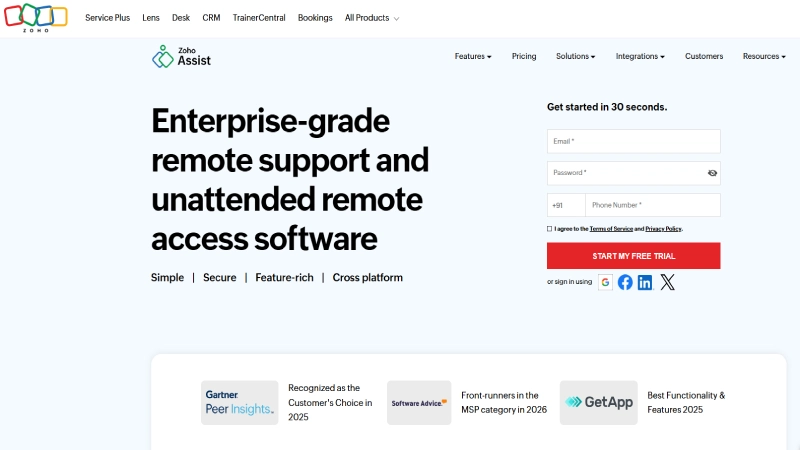
The Best Remote Support Tool with Unattended Access, Session Recording, and Zero Client Installation
Our Score: 8.8/10
Quick Facts
| Pricing | Free (1 technician) | Remote Support: $12/mo | Unattended: $10/mo | Enterprise: custom |
| Platforms | Windows, macOS, Linux, iOS, Android |
| Key Features | Clientless access, unattended access, session recording, multi-monitor, reboot & reconnect |
| Security | AES-256, SSL, 2FA, action logs, GDPR compliant |
| Best For | IT support teams, helpdesks, MSPs needing remote support |
| Free Plan | Yes – 1 technician, 1 unattended computer |
Detailed Review
Zoho Assist differentiates itself as a purpose-built remote support tool rather than just a remote access application. The clientless support model means the end-user does not need to install any software – they simply click a link or enter a session code, and the technician can view and control their screen immediately. Gartner Peer Insights and G2 highlight Zoho Assist’s session recording for compliance, multi-monitor navigation for complex workstation support, and remote reboot with automatic reconnection.
The free plan includes 1 technician with basic remote support and 1 unattended computer – genuinely useful for freelance IT consultants or small support operations. Paid plans are competitively priced: $12/month for remote support or $10/month for unattended access per technician. As part of the Zoho ecosystem, it integrates with Zoho Desk, Zoho CRM, and other Zoho products, creating a unified workflow for businesses already using Zoho.
Zoho Assist’s streaming quality and responsiveness do not match AnyDesk or Splashtop for everyday remote work – it is optimized for support sessions rather than continuous remote desktop use. The interface can feel enterprise-oriented for individual users. Features like voice calling and video chat are limited. But for IT helpdesks, MSPs, and support teams, the combination of clientless access, session recording, and Zoho ecosystem integration provides a specialized tool that general-purpose remote desktop software does not match.
Pros & Cons
| PROS | CONS |
|---|---|
| Clientless remote support – no end-user installation | Not optimized for continuous remote desktop work |
| Free plan for 1 technician + 1 unattended computer | Streaming quality below AnyDesk/Splashtop |
| Session recording for compliance | Interface enterprise-oriented for individuals |
| Remote reboot with automatic reconnection | Limited voice/video communication |
| Zoho ecosystem integration (Desk, CRM) | Free plan restricted to 1 technician |
| Competitive pricing ($10–12/mo per technician) | Advanced features require higher tiers |
What the Community Says
“Zoho Assist enables IT professionals to initiate and manage secure remote sessions, troubleshoot devices, transfer files, and collaborate through screen sharing and remote control.” – Gartner Peer Insights
BEST FOR
IT support teams and helpdesks, MSPs managing client support, Zoho ecosystem users, and freelance IT consultants needing clientless support.
7. Parallels Access
The Best Remote Desktop for iPad and Mobile with Native Touch Gestures and App Launcher
Our Score: 8.5/10
Quick Facts
| Pricing | $6.99/mo or $49.99/yr per computer |
| Platforms | Access from: iOS, Android, web browser | Host: Windows, macOS |
| Key Features | Native touch gestures, app launcher, copy/paste across devices, magnifying glass cursor |
| Security | AES-256, SSL, 2FA |
| Best For | iPad/tablet users, mobile professionals, on-the-go access |
| Free Plan | 14-day free trial |
Detailed Review
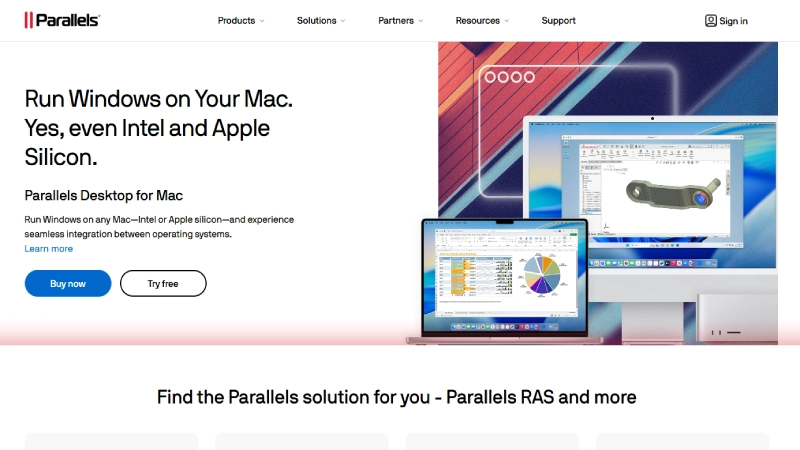
Parallels Access is specifically designed for accessing your desktop from mobile devices, particularly iPads. While other remote desktop apps display a scaled-down version of your desktop on a tablet screen, Parallels Access transforms the experience: desktop applications display with touch-optimized interfaces, native iPad gestures (pinch, swipe, tap) replace mouse interactions, and an app launcher provides quick access to your remote applications without navigating the full desktop. TechRadar noted that Parallels Access is a must-have for regular mobile and tablet device users.
The copy/paste functionality works seamlessly between your mobile device and remote computer. A smart magnifying glass cursor provides precise pointing on small interface elements. The web browser access option means you can also connect from any computer without installing software. Performance is optimized for mobile connections, handling bandwidth fluctuations better than general-purpose remote desktop clients.
Parallels Access is limited to 5 computers on Personal plans. The per-computer pricing ($49.99/year each) adds up for users needing access to multiple machines. It cannot serve as an IT support tool (no unattended access for other users’ machines). Linux hosting is not supported. But for professionals who regularly need to access their Windows or Mac desktop from an iPad or phone – and want an experience designed for touch rather than adapted from mouse input – Parallels Access is in a category of its own.
Pros & Cons
| PROS | CONS |
|---|---|
| Native touch gestures for iPad/mobile | Limited to 5 computers on Personal plans |
| App launcher for quick application access | Per-computer pricing adds up quickly |
| Seamless copy/paste between devices | No unattended access for IT support |
| Magnifying glass cursor for precise control | Linux hosting not supported |
| Optimized for mobile bandwidth | No free tier (14-day trial only) |
| Web browser access option | No session recording or enterprise features |
What the Community Says
“The options offered by Parallels Access make it a must-have for regular mobile and tablet users. Touch gestures mean the software can be operated by anyone, from anywhere.” – TechRadar
BEST FOR
iPad and tablet users, mobile professionals, on-the-go workers, and anyone wanting touch-native remote desktop on mobile devices.
READ MORE: 10 Best Meeting Scheduling Tools in 2026: Tested & Compared
8. RemotePC
The Always-On Unattended Remote Access Solution with Simple Setup and Cross-Platform Support
Our Score: 8.3/10
Quick Facts
| Pricing | Consumer: $29.62/yr (1 PC) | Team: $59.62/yr (2 PCs) | Enterprise: custom |
| Platforms | Windows, macOS, Linux, iOS, Android |
| Key Features | Always-on unattended access, file transfer, remote print, multi-monitor, whiteboard |
| Security | AES-256, TLS 1.2, 2FA, personal key per computer |
| Best For | Remote workers needing reliable daily access, small businesses |
| Free Plan | 7-day free trial |
Detailed Review
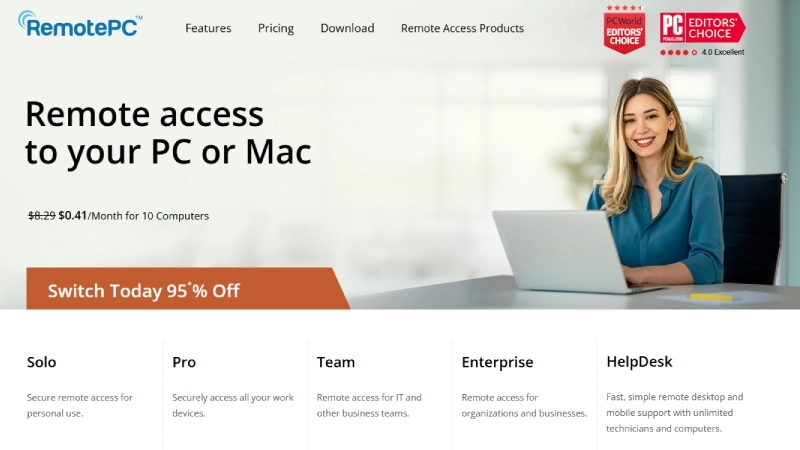
RemotePC focuses on reliable, always-on unattended access as its core value proposition. GetApp lists it among the top remote desktop solutions for consumers and businesses. The setup is straightforward: install on the computers you want to access, set a personal key, and connect from any device. The always-on architecture means your remote computer is accessible 24/7 without requiring anyone to approve the connection – essential for remote workers who need their office PC available at any time.
File transfer, remote printing, multi-monitor support, whiteboard collaboration, and chat are included. The pricing structure is annual rather than monthly, and at $29.62/year for a single computer, RemotePC undercuts most competitors on a per-year basis. The personal key security model adds a layer beyond just password authentication. Cross-platform support covers Windows, macOS, Linux, iOS, and Android.
RemotePC’s streaming performance is adequate but not class-leading – creative professionals or users needing 4K quality may find Splashtop or AnyDesk smoother. The interface is functional but dated compared to more modern competitors. Enterprise features and team management require higher-tier plans. Brand recognition is lower than TeamViewer or AnyDesk. But for straightforward daily remote access at an affordable annual price, RemotePC provides dependable always-on connectivity.
Pros & Cons
| PROS | CONS |
|---|---|
| Always-on unattended access – 24/7 availability | Streaming performance not class-leading |
| $29.62/yr for single PC – annual value pricing | Interface dated compared to competitors |
| Personal key security per computer | Enterprise features require higher tiers |
| Cross-platform: Windows, Mac, Linux, mobile | Lower brand recognition |
| File transfer, remote print, whiteboard | Mobile app experience could improve |
| Simple setup process | Limited collaboration features vs. TeamViewer |
What the Community Says
“RemotePC is a fast and secure remote access solution for consumers, businesses, and IT professionals to access and control PCs and Macs remotely from any device.” – GetApp
BEST FOR
Remote workers needing reliable daily access, small businesses on annual budgets, and users wanting simple always-on unattended connectivity.
9. AnyViewer
The Best Free Remote Desktop for Windows with Performance and Security That Rivals Paid Tools
Our Score: 8.2/10
Quick Facts
| Pricing | Free (personal, 2 devices) | Professional: $9.90/mo | Enterprise: $19.90/mo |
| Platforms | Windows, iOS, Android (limited Mac/Linux) |
| Key Features | One-click unattended access, file transfer, multi-session, text chat, Elliptic Curve encryption |
| Security | Elliptic Curve Cryptography (ECC), end-to-end encryption |
| Best For | Free Windows remote access, personal users, budget-conscious users |
| Free Plan | Yes – 2 unattended devices, basic features |
Detailed Review
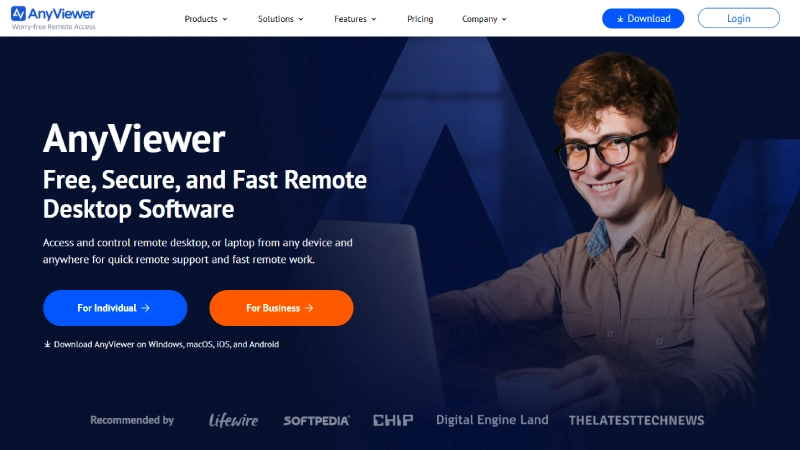
AnyViewer has emerged as the top free remote access choice for Windows users in 2026. The free tier allows connecting to 2 unattended devices with one-click access, file transfer, text chat, and multi-session support – more generous than TeamViewer or AnyDesk’s free offerings for practical daily use. TechRadar featured AnyViewer in their best free remote desktop roundup, and the tool ranked 1 among free options in several comparison reviews.
The security model uses Elliptic Curve Cryptography (ECC) rather than the standard AES encryption, providing strong protection with efficient key sizes. The interface is clean and simple, designed for users who want to connect quickly without navigating complex settings. File transfer between connected machines is straightforward. For gaming users, AnyViewer supports remote gameplay from a PC to a mobile device.
AnyViewer is primarily Windows-focused – Mac and Linux support is limited compared to cross-platform leaders like TeamViewer or AnyDesk. The free plan limits you to 2 unattended devices and basic transfer speeds. Professional features like privacy mode and higher transfer speeds require paid plans. The company is newer and has less of a global track record. But for Windows users seeking a genuinely capable free remote desktop tool, AnyViewer provides the best free feature set available.
Pros & Cons
| PROS | CONS |
|---|---|
| Free tier: 2 unattended devices with file transfer | Primarily Windows-focused – limited Mac/Linux |
| One-click unattended access – simple setup | Free plan caps at 2 unattended devices |
| Elliptic Curve Cryptography (ECC) encryption | Transfer speeds limited on free tier |
| Multi-session support on free tier | Newer company – less global track record |
| Remote gaming support | Privacy mode requires paid plan |
| Clean, simple interface | Professional features gated behind subscription |
What the Community Says
“AnyViewer ranks as the best free remote access software thanks to its balance of simplicity, performance, and security. More practical free features without forcing upgrades.” – TechRadar / AnyViewer
BEST FOR
Free Windows remote access, personal users, budget-conscious professionals, and gamers wanting to stream PC games to mobile.
10. GoTo Resolve (formerly LogMeIn/GoToMyPC)
The Enterprise IT Management Platform with Remote Access, Helpdesk, and Endpoint Monitoring Built-In
Our Score: 8.6/10
Quick Facts
| Pricing | Free (limited) | Standard: $57/mo (per agent) | Premium: custom |
| Platforms | Windows, macOS, Linux, iOS, Android, ChromeOS |
| Key Features | Remote access + helpdesk + endpoint management, ticketing, zero trust security |
| Security | Zero trust architecture, AES-256, HIPAA eligible, SOC 2 Type II |
| Best For | IT departments combining remote access with helpdesk/endpoint management |
| Free Plan | Yes – limited features for up to 3 agents |
Detailed Review
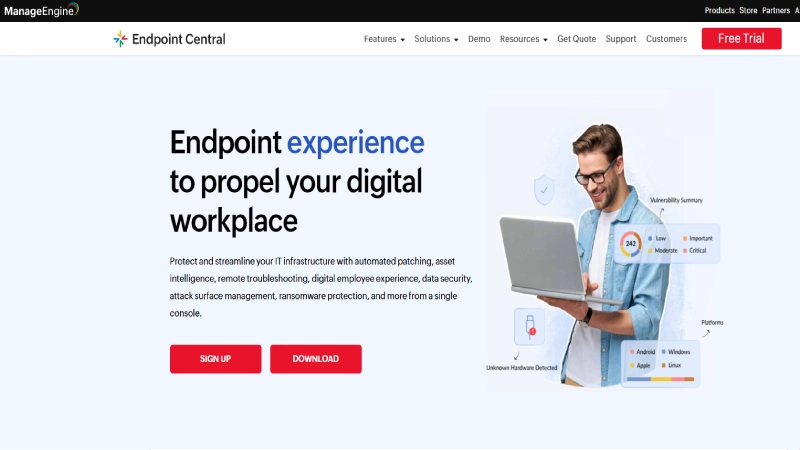
GoTo Resolve (the evolution of the LogMeIn and GoToMyPC brands) represents a different category from standalone remote desktop tools: it combines remote access, helpdesk ticketing, and endpoint management into a unified IT management platform. For IT departments that currently juggle separate tools for remote support, ticket tracking, and device monitoring, GoTo Resolve consolidates these workflows. EXPERTE.com noted the transition from the well-known LogMeIn brand.
The zero trust security architecture requires device verification before establishing any remote connection, providing stronger security than traditional password-only access. HIPAA eligibility makes it suitable for healthcare organizations. SOC 2 Type II certification confirms ongoing security compliance. The background management capabilities allow IT teams to run scripts, install software, and manage endpoints without interrupting the user.
GoTo Resolve’s $57/month per agent pricing is significantly more expensive than standalone remote desktop tools, reflecting its broader IT management scope. The learning curve is steeper for teams that only need simple remote access. The free plan is limited to 3 agents with basic features. For small businesses or individuals who just want to access their PC remotely, GoTo Resolve is overkill. But for IT departments managing devices, handling support tickets, and providing remote access within a single platform, the consolidation value is substantial.
Pros & Cons
| PROS | CONS |
|---|---|
| Unified remote access + helpdesk + endpoint management | $57/mo per agent – expensive for remote access alone |
| Zero trust security architecture | Steeper learning curve than simple tools |
| HIPAA eligible, SOC 2 Type II certified | Overkill for personal or simple remote access |
| Background endpoint management without user interruption | Free plan limited features |
| Free plan for up to 3 agents | Interface complexity for non-IT users |
| Evolved from trusted LogMeIn/GoToMyPC brands | Enterprise focus may not suit small teams |
What the Community Says
“GoTo Resolve combines remote access, helpdesk, and endpoint management into one IT platform. The zero trust architecture provides stronger security than traditional remote access.” – GoTo / EXPERTE.com
BEST FOR
IT departments needing unified remote access + helpdesk + endpoint management, healthcare organizations (HIPAA), and enterprise IT teams managing distributed endpoints.
Full Comparison Table
| Software | Pricing | Free Plan | Platforms | Security | Score |
|---|---|---|---|---|---|
| TeamViewer | $24.90+/mo | Yes (personal) | All | AES-256/SOC2 | 9.4 |
| Splashtop | $5/mo | Trial only | All | ISO/SOC2 | 9.3 |
| AnyDesk | $14.90+/mo | Yes (personal) | All | AES-256 | 9.0 |
| Zoho Assist | $10+/mo | Yes (1 tech) | All | AES-256 | 8.8 |
| GoTo Resolve | $57+/mo | Yes (3 agents) | All | Zero Trust | 8.6 |
| Parallels | $6.99/mo | 14-day trial | Mobile→Win/Mac | AES-256 | 8.5 |
| MS RDP | Free (Pro) | Built-in | Windows host | NLA/TLS | 8.4 |
| RemotePC | $29.62/yr | 7-day trial | All | AES-256 | 8.3 |
| AnyViewer | $9.90+/mo | Yes (2 PCs) | Windows focus | ECC | 8.2 |
| Chrome RD | Free | 100% free | Chrome browser | Google auth | 8.0 |
Decision Guide by Use Case
Best for personal free access
Chrome Remote Desktop for zero-cost simplicity. AnyViewer for free Windows access with more features. Microsoft RDP if you have Windows Pro. All three cost nothing.
Best for remote work (daily office access)
Splashtop ($5/mo) for the best value with 4K streaming. RemotePC ($29.62/yr) for budget annual pricing. Both provide reliable always-on unattended access.
Best for IT support and helpdesk
Zoho Assist for clientless remote support with session recording. TeamViewer for the industry-standard IT tool. GoTo Resolve for unified helpdesk + remote access.
Best for enterprise IT management
TeamViewer for the largest device network and SOC 2 compliance. GoTo Resolve for zero trust + helpdesk + endpoint management. Microsoft RDP for Windows-centric environments.
Best for speed and low latency
AnyDesk with DeskRT codec delivers sub-16ms latency. Splashtop provides 4K streaming quality. Both outperform browser-based alternatives.
Best for mobile/tablet access
Parallels Access is specifically designed for iPad/tablet with native touch gestures and app launcher. Splashtop and TeamViewer also offer good mobile experiences.
Frequently Asked Questions
Q1: What is the best free remote desktop software?
Chrome Remote Desktop is the simplest free option – 100% free with no restrictions but limited features. AnyViewer offers the best free feature set for Windows (2 unattended devices, file transfer). Microsoft RDP is free with Windows Pro. TeamViewer and AnyDesk are free for personal use but may flag commercial usage.
Q2: Is remote desktop software secure?
Top remote desktop tools use AES-256 encryption, TLS transport security, and two-factor authentication. Enterprise solutions like TeamViewer (SOC 2), Splashtop (ISO 27001, SOC 2), and GoTo Resolve (zero trust, HIPAA) meet rigorous compliance standards. The key risk is weak passwords and exposed RDP ports – always use strong passwords and, for Microsoft RDP, connect through a VPN rather than exposing port 3389 directly.
Q3: Can I access my PC from my phone?
Yes. TeamViewer, AnyDesk, Splashtop, Chrome Remote Desktop, AnyViewer, and RemotePC all have iOS and Android apps for mobile access. Parallels Access provides the best mobile experience with native touch gestures designed specifically for iPad and tablet use.
Q4: What is unattended remote access?
Unattended access allows you to connect to a remote computer without anyone physically present to approve the connection. You set it up once with a password/key, and the computer remains accessible 24/7. Essential for remote workers accessing their office PC. Available in TeamViewer, AnyDesk, Splashtop, RemotePC, AnyViewer, and most paid solutions.
Q5: How much does remote desktop software cost?
Free options include Chrome Remote Desktop, Microsoft RDP (Windows Pro), and limited tiers of TeamViewer, AnyDesk, Zoho Assist, and AnyViewer. Paid plans range from $5/month (Splashtop) to $57+/month (GoTo Resolve). For personal use, free tools are sufficient. For business use, expect $5–25/month per user for reliable, feature-complete access.
Q6: What is the difference between remote desktop and VPN?
A VPN creates a secure tunnel to a network, allowing you to access network resources (files, printers, internal apps) as if you were on-site. A remote desktop gives you visual control of a specific computer’s screen. VPNs do not give you screen access; remote desktops do not give you network access. Many businesses use both: VPN for network access and remote desktop for specific machine control.
Final Thoughts
The ability to access your computer from anywhere is no longer a luxury – it is an expectation. Whether you are a freelancer who forgot to download a file before leaving the office, an IT administrator managing 500 endpoints across three time zones, or a video editor who needs to access a powerful desktop workstation from a hotel room, remote desktop software makes physical location irrelevant to productivity.
For most personal users, start with Chrome Remote Desktop (free, simple) or AnyViewer (free, more features). For daily remote work, Splashtop ($5/month) delivers the best value. For IT support, Zoho Assist provides clientless remote support at $10/month. For enterprise IT, TeamViewer remains the industry standard with the widest platform support and compliance certifications.
Test before committing – every paid tool on this list offers a free trial. Pay attention to connection speed (especially if you will use it daily), security features (especially for business data), and platform compatibility (make sure your specific devices are supported). The right remote desktop tool will make you forget that your computer is in another building, another city, or another country entirely.
