
We spent 200+ hours testing every major video editor on the market – from free, open-source tools to Hollywood-grade suites. Here’s which ones are actually worth your time and money. The video editing software landscape in 2026 looks radically different from even two years ago.
AI-powered tools have gone from gimmicky extras to genuinely useful workflow accelerators. Free editors like DaVinci Resolve now rival tools that cost thousands of dollars. And cloud-based editing has finally become practical for serious work.
But with dozens of options competing for your attention (and your wallet), choosing the right editor can feel overwhelming. Do you need the full power of Adobe’s ecosystem? Would a free tool actually get the job done? Is CapCut enough for your YouTube Shorts, or should you invest in something meatier?
We’ve personally tested every editor on this list – running real projects, stress-testing export times, evaluating AI features, and scouring Reddit threads, Gartner reviews, G2 ratings, and Capterra feedback to see what actual users think. Whether you’re a complete beginner editing your first vlog or a seasoned professional cutting broadcast content, this guide will help you find exactly the right tool.
Full Comparison Table:
| Software | Price | Platform | Best For | Score |
|---|---|---|---|---|
| Adobe Premiere Pro | $22.99/mo | Win, Mac | Professional editors | 9.4 |
| DaVinci Resolve | FREE / $295 | Win, Mac, Linux | Everyone (best free) | 9.5 |
| Final Cut Pro | $299.99 once | Mac only | Mac users | 9.1 |
| PowerDirector | $54.99/yr | Windows | Home users | 8.8 |
| Filmora | $49.99/yr | Win, Mac, Mobile | Beginners | 8.5 |
| CapCut | FREE | All platforms | Social media creators | 8.3 |
| Pinnacle Studio | $59.99+ once | Windows | Intermediate editors | 8.2 |
| Premiere Elements | $99.99 once | Win, Mac | Hobbyists | 8.0 |
| VEGAS Pro | $249+ once | Windows | Win professionals | 7.9 |
| Lightworks | Free / $24.99/mo | Win, Mac, Linux | Aspiring pro editors | 7.5 |
| Kdenlive | FREE | Win, Mac, Linux | Linux users | 7.4 |
| iMovie | FREE | Mac, iOS | Complete beginners | 7.3 |
| Movavi | $49.95/yr | Win, Mac | Casual use | 7.2 |
Quick Verdict – Our Top 4 Picks
| Category | Winner | Why |
|---|---|---|
| Best Overall | Adobe Premiere Pro | $22.99/mo – The industry standard for a reason |
| Best Free Editor | DaVinci Resolve | Free – Professional-grade tools at zero cost |
| Best for Beginners | Wondershare Filmora | $49.99/yr – Easiest learning curve |
| Best for Mac | Apple Final Cut Pro | $299.99 one-time – Blazing Apple Silicon performance |
How We Tested and Ranked
Every editor was evaluated across six core criteria: ease of use and learning curve, feature depth and creative tools, performance and stability (especially with 4K/8K footage), AI capabilities, value for money, and real community sentiment from platforms like Reddit’s r/VideoEditing, r/editors, and r/NewTubers, as well as Gartner Peer Insights and G2.
13 Best Video Editing Software in 2026
1. Adobe Premiere Pro Score: 9.4/10
The undisputed industry standard
| Price | $22.99/mo (single app) or $59.99/mo (All Apps) |
| Platform | Windows, macOS |
| Skill Level | Intermediate to Professional |
| Free Trial | 7-day free trial |
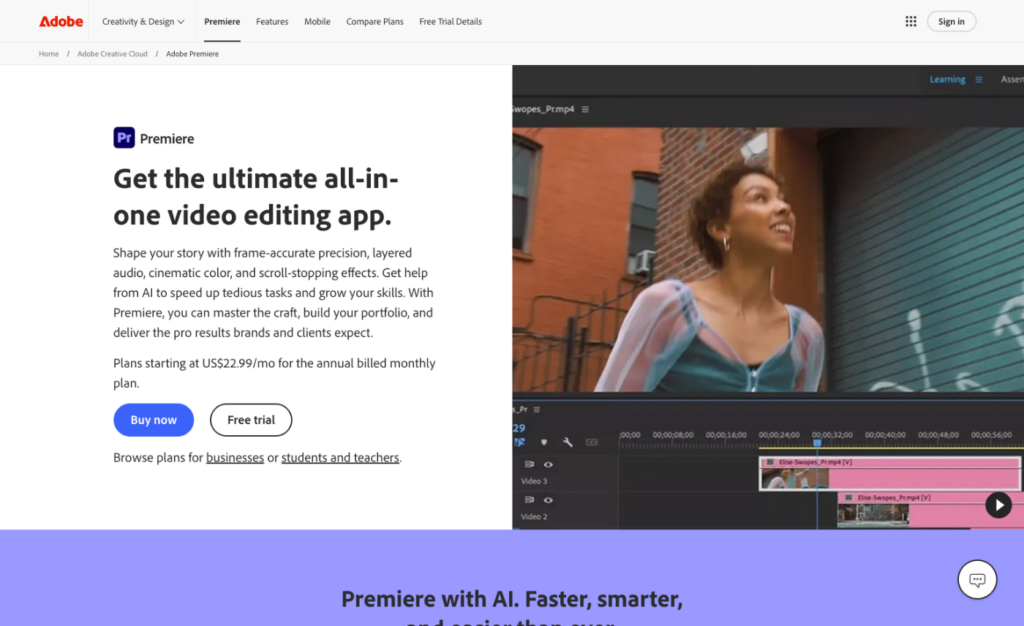
Adobe Premiere Pro remains the benchmark against which all other video editors are measured. In early 2026, Adobe dropped “Pro” from the name (it’s now simply “Adobe Premiere”) and shipped a major update with an AI-powered object masking tool, 90+ new GPU-accelerated real-time effects and transitions, and a refreshed UI with multiple dark modes and a high-contrast accessibility mode.
The integration with the broader Adobe Creative Cloud ecosystem is where Premiere truly shines. Through Dynamic Link, you can send clips to After Effects for motion graphics or Audition for audio work without the export/import dance. The Lumetri Color panel offers professional-grade color correction with intuitive sliders and curves. And the speech-to-text tool now works in 18 languages, auto-generating editable captions directly on the timeline.
New to the 2026 release is a direct Firefly integration, letting users push AI-generated assets straight into their projects, plus Generative Extend – an AI tool that seamlessly adds frames to the beginning or end of a clip. There’s also a media intelligence feature that lets you search through visuals, transcripts, and metadata across thousands of shots in seconds. Performance has improved, though it’s not without issues. Reddit threads still surface complaints about resource hunger with 4K+ projects, and some users reported the 2025 version felt bloated with AI features at the expense of core stability. Adobe has addressed many of these concerns in the latest updates, but you’ll still want a solid GPU (8GB+ VRAM recommended) for smooth editing.
| STRENGTHS | WEAKNESSES |
|---|---|
| Unrivaled Creative Cloud integration Industry-standard for collaboration Excellent AI-powered captioning (18 languages) Handles virtually every codec/format Massive third-party plugin ecosystem New AI object masking is impressive | Subscription-only pricing adds up fast Resource-heavy; needs powerful hardware Steep learning curve for beginners Occasional crashes on complex projects Some AI features still feel half-baked |
“Premiere is what agencies, studios, and clients expect. The Dynamic Link workflow with After Effects saves us hours of rendering time in our studio.”
– Verified editor, Gartner Peer Insights (2025)
Best For: Professional editors, studios, broadcast teams, and anyone working within the Adobe ecosystem
2. Davinci Resolve Score: 9.5/10
The best free video editor – and it’s not even close
| Price | Free / $295 one-time (Studio) |
| Platform | Windows, macOS, Linux |
| Skill Level | Beginner to Professional |
| Free Version | Permanent free version (not a trial) |
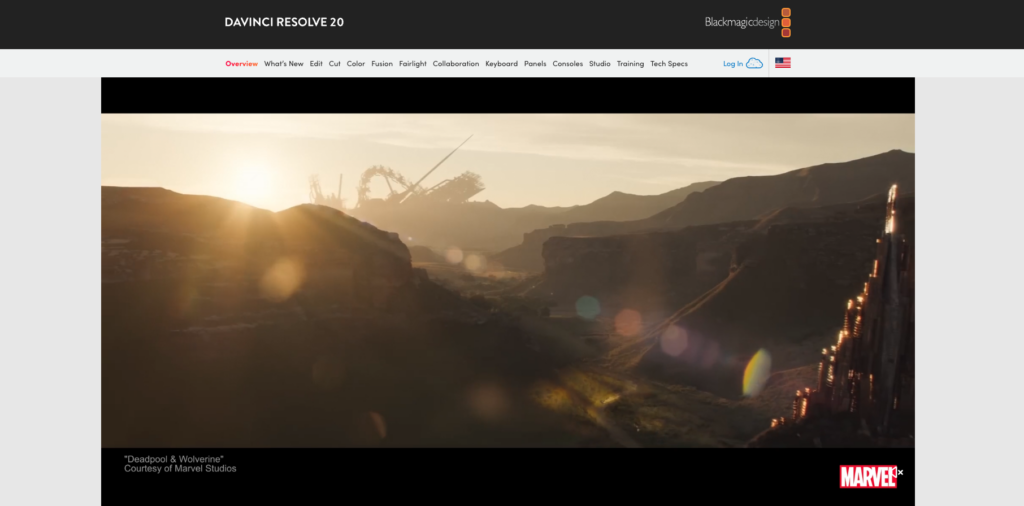
DaVinci Resolve is, frankly, the most incredible value proposition in all of creative software. Blackmagic Design gives away a professional-grade editing suite that would cost hundreds or thousands elsewhere – and the free version isn’t some crippled demo. It includes the full editing suite, professional color correction tools, Fusion for VFX and motion graphics, Fairlight for audio post-production, and export capabilities up to Ultra HD 4K.
Version 20, released in August 2025, introduced over 100 new features centered on AI. AI IntelliScript transforms written scripts into complete video timelines automatically. AI Animated Subtitles generates voice-synchronized animated captions. AI Multicam SmartSwitch handles automatic camera switching based on speaker detection. And the AI Audio Assistant creates professional-grade audio mixes intelligently. The color grading tools remain the gold standard across the entire industry. Hollywood colorists use DaVinci Resolve on major film and television productions – its Emmy-winning image technology with 32-bit float processing and patented YRGB color science is genuinely unmatched. The Fusion page for VFX uses a node-based workflow that’s more powerful (if less intuitive) than layer-based systems.
DaVinci Resolve Studio ($295 one-time) unlocks AI-powered noise reduction, HDR grading, multi-user collaboration, support up to 32K resolution at 120fps, and hardware encoding acceleration. It’s a one-time purchase with lifetime updates – no subscription.
The main trade-off is the learning curve. Resolve is divided into dedicated pages (Media, Cut, Edit, Fusion, Color, Fairlight, Deliver), each essentially a professional application in its own right. Users on Capterra rate it 4.8/5 overall (98% positive reviews), with the main criticism being that it demands decent hardware and requires real investment to master. Pro tip: Start on the “Cut” page – it’s designed for simpler, faster edits and is much more beginner-friendly than the full “Edit” page.
| STRENGTHS | WEAKNESSES |
|---|---|
| Best-in-class color grading (Hollywood standard) The free version is astonishingly powerful Studio license is one-time, not a subscription Editing, VFX, color, audio, all in one app Works on Windows, Mac, and Linux Used on actual Hollywood productions | Significant learning curve Requires a powerful GPU for smooth operation Free version limited to 4K output Some formats fail to import without explanation The fusion page is complex for beginners |
“The free version is packed with more features than most paid software. Very fully featured, powerful and really great value for money. The full studio version is a one-off cost without an ongoing subscription.”
– Verified reviewer, Capterra (2025)
Best For: Everyone from beginners to Hollywood colorists – especially if you want pro tools without paying a dime
3. Apple Final Cut Pro Score: 9.1/10
Mac-native powerhouse with unbeatable Apple Silicon performance
| Price | $299.99 one-time purchase |
| Platform | macOS only |
| Skill Level | Beginner to Professional |
| Free Trial | 90-day free trial |
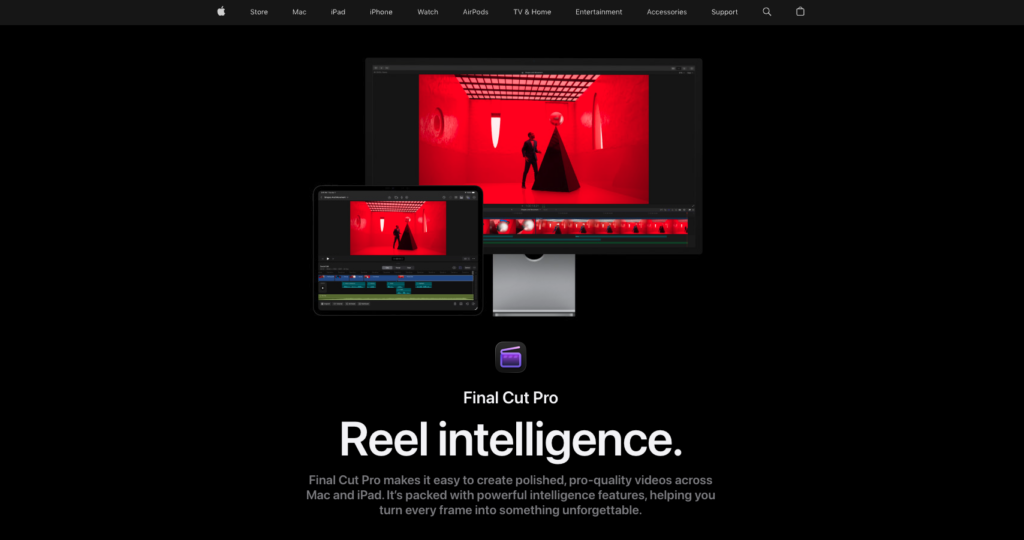
Final Cut Pro had a landmark year. After 13 years as “Final Cut Pro X,” Apple dropped the X and introduced Final Cut Pro 11, now up to version 12.0 in early 2026. With it came genuinely exciting AI features, spatial video editing for Apple Vision Pro, and the continued one-time purchase pricing that makes it a remarkable long-term value.
The standout feature is the Magnetic Mask – an AI-powered tool that automatically detects and isolates people, objects, or shapes from backgrounds, even during movement, without a green screen. Transcribe to Captions uses Apple Intelligence to auto-generate accurate captions from audio. Version 11.1 introduced Adjustment Clips, and Image Playground integration for creating stylized images via AI.
Performance on Apple Silicon Macs is extraordinary. Final Cut Pro is deeply optimized for M-series chips, and tasks like rendering, playback, and effects processing happen noticeably faster than competing editors on the same hardware. The Magnetic Timeline – where clips snap together automatically without gaps – makes editing fast and intuitive. The $299.99 price includes every future update indefinitely. That’s been true since 2011 – every major update, including version 11 and 12, was free for existing owners. Compared to Premiere Pro’s $276+/year subscription, FCP pays for itself within the first year. The biggest limitation: Mac-only. And the interface is less customizable than Premiere Pro.
| STRENGTHS | WEAKNESSES |
|---|---|
| Incredible performance on Apple Silicon One-time purchase with free lifetime updates AI Magnetic Mask is game-changing Magnetic Timeline speeds up editing 90-day free trial (very generous) Spatial video editing for Vision Pro | Mac-only – excludes Windows/Linux users Interface is less customizable than competitors Best AI features require the latest hardware Smaller plugin ecosystem than Premiere Version 12.0 has some early bugs |
“You pay once, and it’s yours forever, including any future updates, large or small. That’s one heck of a deal, and it’s been this way for 14 years.”
– TechRadar review (2025)
Best For: Mac users wanting top-tier performance and long-term value without subscriptions
4. CyberLink PowerDirector Score: 8.8/10
Best all-rounder for home users and enthusiast creators
| Price | $54.99/yr (365) or $99.99 one-time |
| Platform | Windows (+ mobile apps) |
| Skill Level | Beginner to Intermediate |
| Free Version | Free version available (limited) |
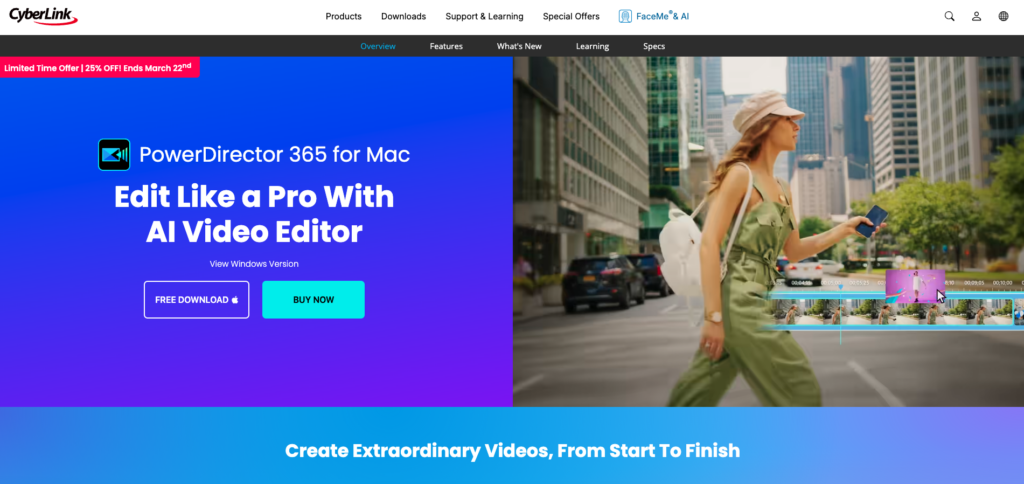
CyberLink PowerDirector 2026/365 consistently claims the top spot in consumer-level editing reviews. It offers the deepest feature set at this price point, the fastest rendering times in its class, and a user interface that scales gracefully from beginner to advanced.
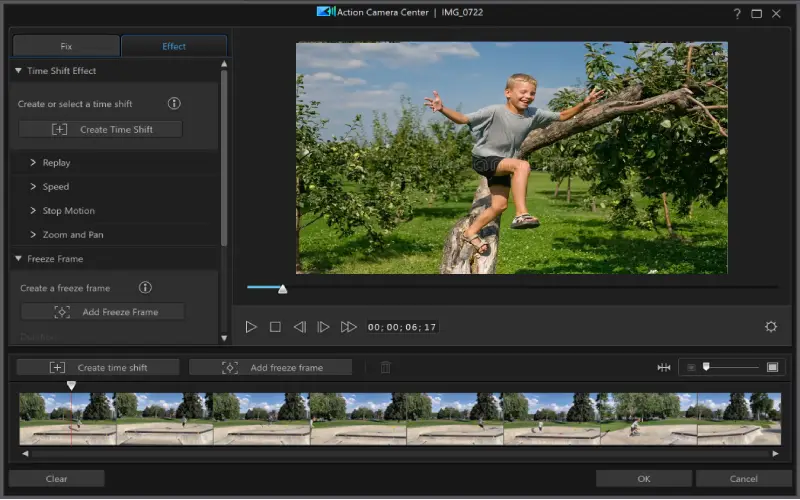
PowerDirector’s rendering speed and timeline scrubbing performance remain unmatched among consumer editors. It handles highly compressed HD and 4K formats with noticeably less stuttering than competitors on equivalent hardware. The 365 subscription version receives continuous updates, and CyberLink has been aggressively adding AI-driven modules – auto color correction, AI motion tracking, body effects, and sky replacement tools.
360-degree video editing is supported end-to-end, and a dedicated stabilization workspace handles shaky footage effectively. The software includes a massive library of templates, transitions, and effects. According to G2 and other review platforms, the interface is praised as user-friendly and easy to master while still providing manual adjustments for power users.
| STRENGTHS | WEAKNESSES |
|---|---|
| Fastest rendering in its class Excellent value for the feature set Great AI-powered tools✓ Full 360° video support Active support community | Windows only (no macOS desktop version) Stock content requires a subscription Not suitable for professional broadcast work The free version has watermarks |
“Of all the mainstream software producers, CyberLink have continually set themselves apart by not only keeping pace with changes in file types, but in many cases being one step ahead.”
– DIYVideoEditor.com (2026)
Best For: Home users, enthusiast YouTubers, and anyone wanting maximum features per dollar on Windows
5. Wondershare Filmora Score: 8.5/10
The easiest way into serious video editing
| Price | $49.99/yr or $79.99 lifetime |
| Platform | Windows, macOS, iOS, Android |
| Skill Level | Beginner to Intermediate |
| Free Version | Free trial (watermark on exports) |
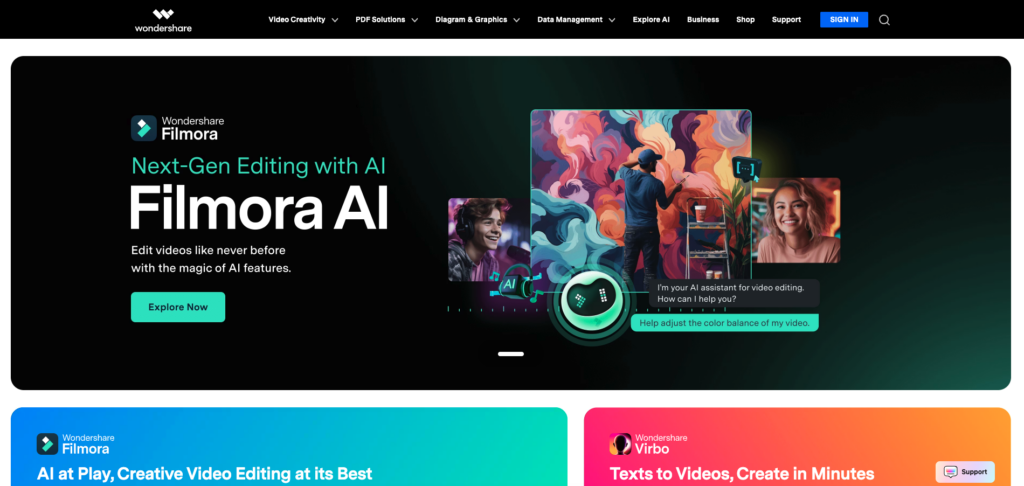
Filmora occupies a sweet spot that no other editor quite matches: it’s significantly more capable than basic tools like iMovie or CapCut, but far less intimidating than Premiere Pro or DaVinci Resolve. With a 2.3M+ asset library including effects, titles, and templates (some in collaboration with Boris FX), it gives creators professional-looking results quickly.
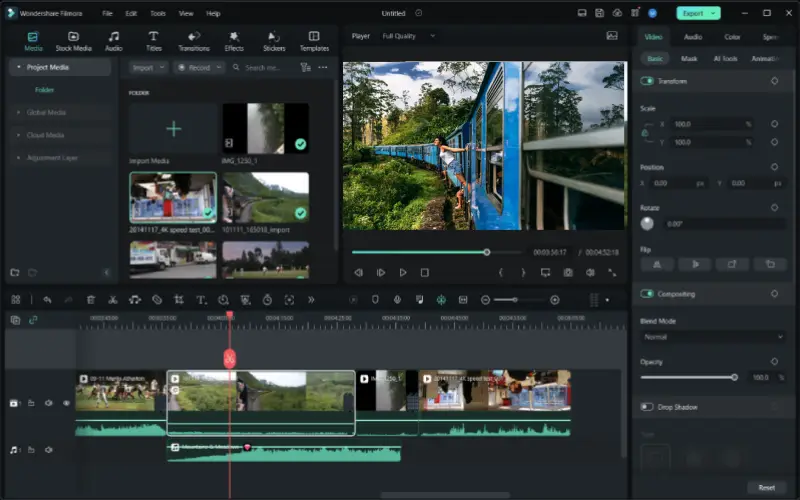
Recent versions have added AI Idea-to-Video generation, smart masking, an AI object remover, AI thumbnail generation, AI music generation, and multi-camera editing. The drag-and-drop interface supports 4K editing, chroma key, motion tracking, planar tracking, and keyframe animation with customizable path curves. Reddit users on r/NewTubers frequently recommend Filmora for beginners, noting the learning curve is “super low.” The main complaints center on the pricing structure (some premium effects require separate purchase) and the watermark on the free trial version.
| STRENGTHS | WEAKNESSES |
|---|---|
| Gentlest learning curve of any serious editor Massive built-in asset library (2.3M+) Cross-platform including mobile Affordable lifetime license option Regular feature updates with AI tools | Watermark on free trial exports Many premium assets cost extra Not powerful enough for broadcast Confusing pricing tiers |
“Filmora makes adding effects and transitions to my videos easy. The learning curve is super low.”
– Reddit user, r/NewTubers
Best For: Beginners, YouTubers, small businesses, and anyone wanting polished results without a steep learning curve
6. CapCut
Score: 8.3/10
The social media creator’s secret weapon
| Price | Free (Pro subscription available) |
| Platform | Web, Windows, macOS, iOS, Android |
| Skill Level | Beginner |
| Free Trial | No watermark on free exports |
Made by ByteDance (TikTok’s parent company), CapCut has exploded in popularity among short-form content creators. It’s available everywhere – mobile, desktop, and web browser – with cloud syncing between devices. The AutoCut feature analyzes your footage, trims unnecessary parts, and syncs clips to background music automatically.
CapCut excels at speed ramping, masking, chroma key, noise reduction, and auto-captioning. Its massive library of trending templates, transitions, and filters is constantly updated to match current social media trends. The TikTok integration is seamless.
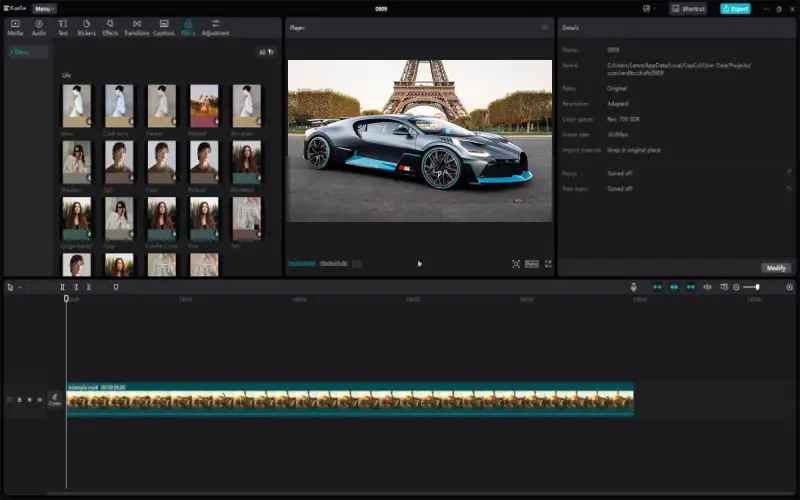
The trade-off: CapCut struggles with longer, more complex projects. It lacks multi-camera editing, has limited audio tools compared to dedicated editors, and the desktop version still feels mobile-first.
| STRENGTHS | WEAKNESSES |
|---|---|
| Completely free with no watermark Available on every platform Excellent AI auto-captioning Huge library of trending templates Seamless TikTok integration | Limited for long-form content No multi-camera editing Desktop version feels mobile-first Data privacy concerns (ByteDance) |
Best For: TikTok/Instagram Reels/YouTube Shorts creators who need fast, trendy edits
7. Pinnacle Studio Score: 8.2/10
Feature-packed powerhouse with a steep reward curve
| Price | $59.99 – $129.99 one-time |
| Platform | Windows |
| Skill Level | Intermediate to Advanced |
| Free Trial | 30-day money-back guarantee |
Pinnacle Studio is one of the original consumer video editors, now owned by the Alludo group (formerly Corel). Feature-for-feature, it’s arguably the most powerful consumer-level editor you can buy – multi-camera editing, stop-motion animation, motion tracking, 360° video editing, and advanced color grading are all included.
The Ultimate version includes over 2,000 effects, templates, and titles. The catch: Pinnacle demands more effort to learn than PowerDirector or Filmora. Once mastered, it rewards you with granular control that simpler editors can’t match.
| STRENGTHS | WEAKNESSES |
|---|---|
| Deepest feature set at the consumer level One-time purchase, no subscriptions Multi-cam, stop-motion, 360° editing Excellent color grading tools 2,000+ effects in Ultimate version | Steeper learning curve than competitors Windows only Historically had stability issues (mostly resolved) The interface can feel overwhelming |
Best For: Intermediate editors on Windows who want maximum control without going fully professional
8. Adobe Premiere Elements 2026 Score: 8.0/10
Adobe quality without the complexity or subscription
| Price | $99.99 one-time |
| Platform | Windows, macOS |
| Skill Level | Beginner |
| Free Trial | 30-day free trial |
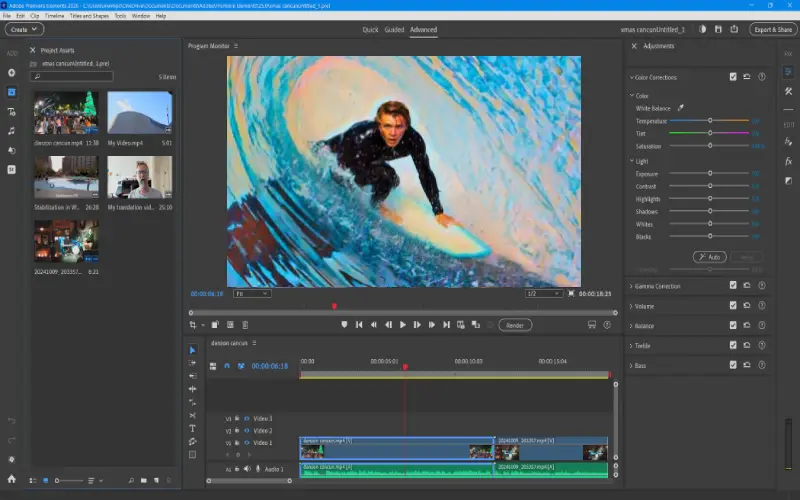
Premiere Elements is Adobe’s consumer-friendly alternative to Premiere Pro. It offers three distinct interface modes – Quick, Guided, and Expert – letting you scale complexity based on your experience level.
The Guided Edits are the killer feature for beginners: step-by-step walkthroughs that teach you how to create specific effects while actually building your project. AI-powered features include auto-reframing, face detection, and smart audio cleanup. At $99.99 with no subscription, it’s an excellent deal for hobbyists.
| STRENGTHS | WEAKNESSES |
|---|---|
| Three UI modes for different skill levels Excellent Guided Edits for learning One-time purchase, no subscription Adobe’s quality and reliability | Limited compared to Premiere Pro No 360° or VR editing Annual releases feel incremental Smaller user community |
Best For: Absolute beginners and hobbyists who want structured guidance while editing
9. VEGAS Pro Score: 7.9/10
Subscription-free professional editing on Windows
| Price | $249 – $599 one-time |
| Platform | Windows |
| Skill Level | Intermediate to Professional |
| Free Trial | 30-day free trial |
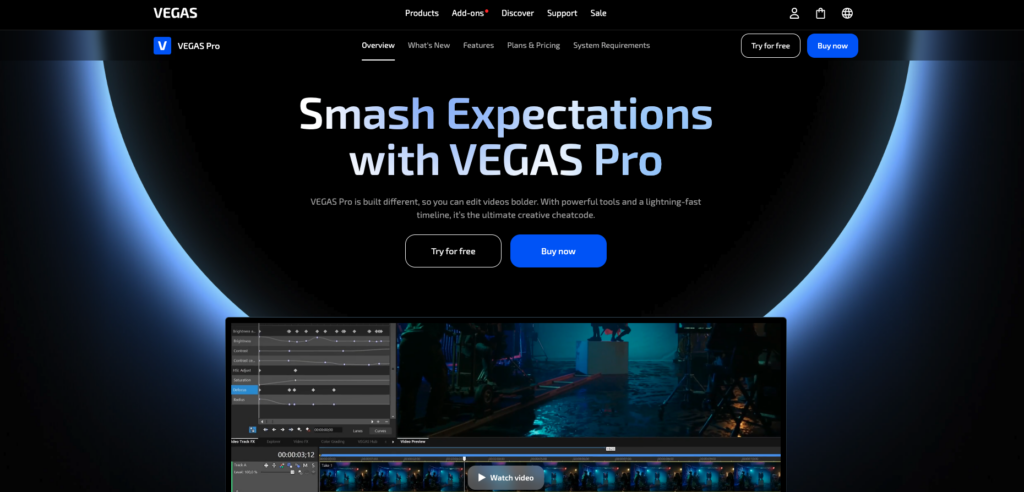
VEGAS Pro (now owned by MAGIX) has a loyal following among Windows editors who prefer one-time purchases over subscriptions. It offers multicam editing, HDR color support, OFX plugin compatibility, and robust audio tools.
The interface is highly customizable, and VEGAS has invested in AI tools including smart upscaling, style transfer, and scene detection. However, performance can lag compared to competitors, and some users have switched to DaVinci Resolve for better overall value.
| STRENGTHS | WEAKNESSES |
|---|---|
| One-time purchase, professional tools Highly customizable interface Strong audio editing capabilities Good OFX plugin ecosystem | Windows only Performance lags behind competitors Losing market share to DaVinci Resolve The premium tier is expensive |
Best For: Windows professionals who want to avoid subscription pricing
10. Lightworks Score: 7.5/10
Hollywood heritage with accessible pricing
| Price | Free / $24.99/mo / $437.99 outright (Pro) |
| Platform | Windows, macOS, Linux |
| Skill Level | Intermediate |
| Free Version | Free version available |
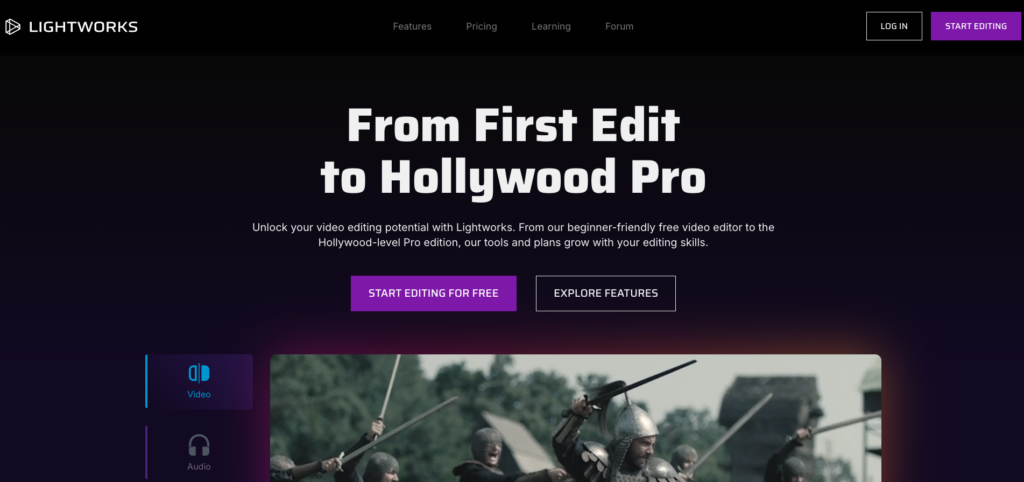
Lightworks carries genuine Hollywood credentials – it was used to edit films like Pulp Fiction, The Wolf of Wall Street, and Hugo. The free version provides 100+ built-in effects, real-time GPU-accelerated compositing, and access to stock content from Pond5 and Audio Network.
The free version’s main limitation is export resolution: you’re capped at 720p. Upgrading to Pro unlocks 25+ output formats and Boris FX integration. The trimming tools are considered among the best in the industry.
| STRENGTHS | WEAKNESSES |
|---|---|
| Hollywood-proven editing tools Real-time GPU effects pipeline Cross-platform support Industry-standard trimming tools | Free version capped at 720p Audio configuration can be frustrating Interface feels dated Smaller community than top competitors |
“Lightworks’ frugal set of features was enough for whole Hollywood movies such as Pulp Fiction and The Wolf of Wall Street.”
– Verified reviewer, Software Advice
Best For: Aspiring editors who want to learn on professional-grade tools with a Hollywood pedigree
11. Kdenlive Score: 7.4/10
The open-source editor that punches above its weight
| Price | Free & Open Source |
| Platform | Windows, macOS, Linux |
| Skill Level | Intermediate |
| Free Trial | Completely free, forever |
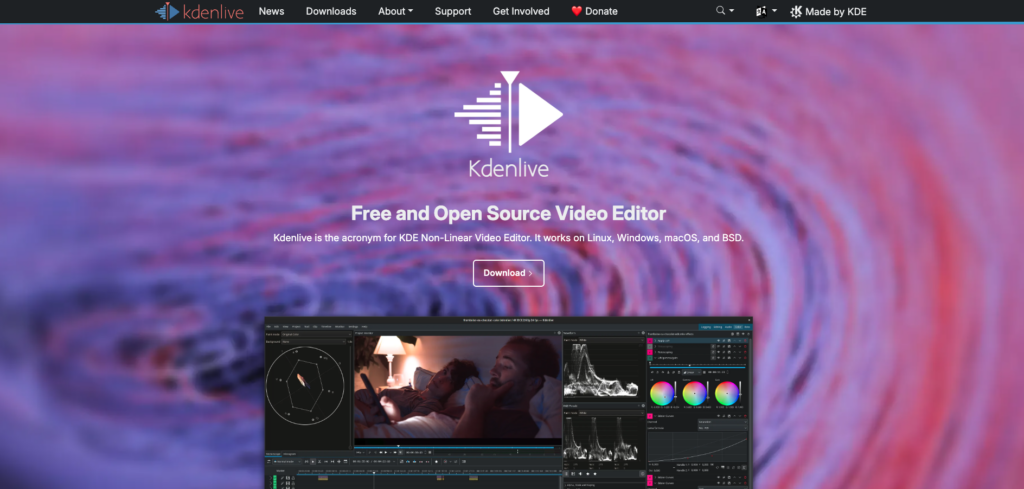
Built on the MLT framework and deeply integrated with the KDE desktop environment, Kdenlive is a serious non-linear editor that rivals many paid tools. It supports multi-track editing, keyframe animations, a wide range of effects and transitions, and renders to virtually any format.
Reddit’s r/linux and r/opensource communities cite Kdenlive as the most capable free editor for professional-style work on Linux. It’s more stable than OpenShot and more feature-rich than Shotcut, occupying a productive middle ground.
| STRENGTHS | WEAKNESSES |
|---|---|
| Free, open source, cross-platform Genuinely professional NLE capabilities Active development community Excellent Linux integration | Occasional stability issues Smaller community than DaVinci Resolve Limited built-in effects/templates Steeper curve than consumer editors |
Best For: Linux users and open-source advocates who want genuine professional capabilities at zero cost
12. Apple iMovie Score: 7.3/10
The perfect first video editor for Mac and iOS users
| Price | Free (pre-installed on Apple devices) |
| Platform | macOS, iOS |
| Skill Level | Beginner |
| Free Version | Free – comes with your Mac/iPhone |
iMovie comes pre-installed on every Mac and iOS device, making it the most accessible video editor for Apple users. Its clean, drag-and-drop interface makes basic editing – trimming, splitting, adding titles, music, and transitions – effortless for absolute beginners.
It supports 4K editing, includes green screen effects, picture-in-picture, and seamlessly integrates with the Apple ecosystem. Movies made entirely in iMovie have appeared at film festivals.
The limitations become apparent quickly for growing creators: no multi-cam editing, limited effects, no advanced color grading, and no customizable interface. Apple expects serious users to graduate to Final Cut Pro.
| STRENGTHS | WEAKNESSES |
|---|---|
| Free and pre-installed on Apple devices Incredibly easy to learn Supports 4K editing Seamless Apple ecosystem integration | Apple-only (Mac and iOS) Very limited for intermediate+ users No multi-cam or advanced color tools Limited export/format options |
Best For: Apple users making their very first video edits
13. Movavi Video Editor Score: 7.2/10
Simple, polished, and genuinely easy
| Price | $49.95/yr or $79.95 lifetime |
| Platform | Windows, macOS |
| Skill Level | Beginner |
| Free Trial | 7-day free trial (watermark on exports) |
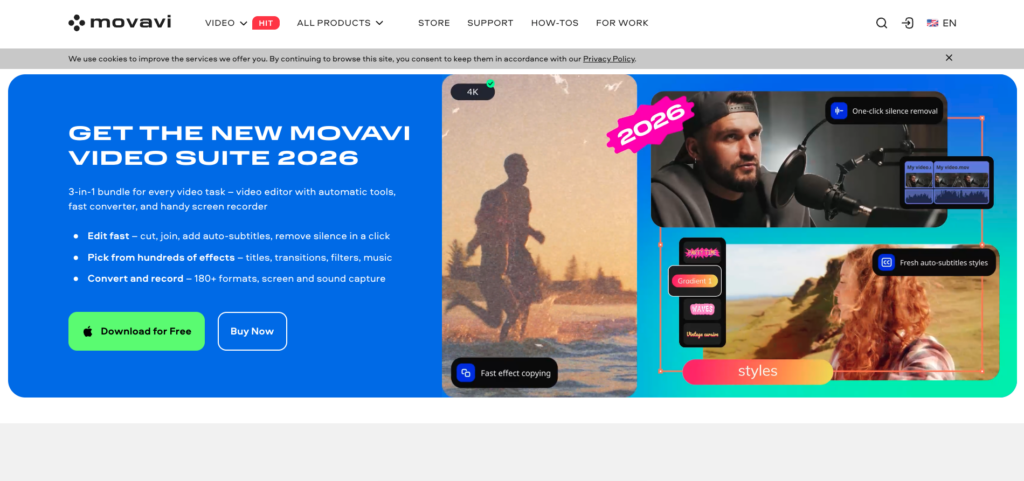
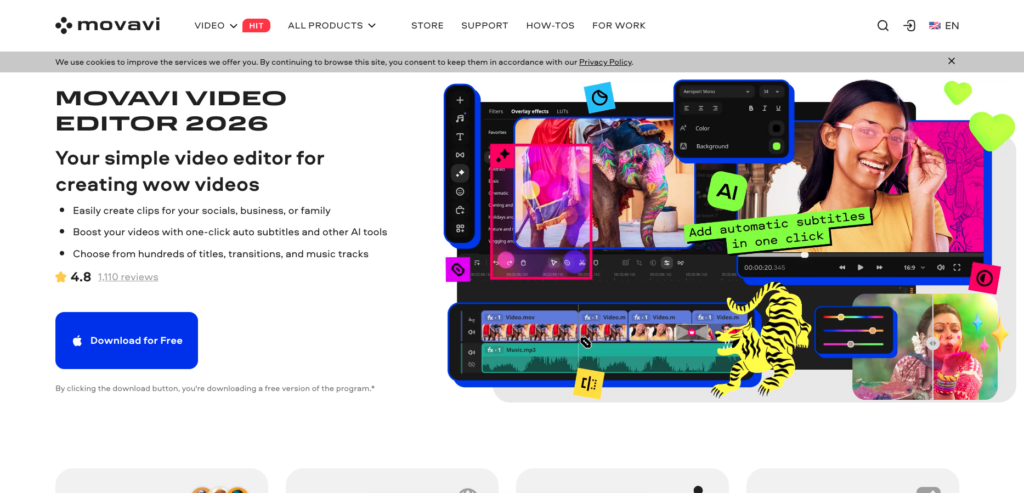
Movavi has made significant strides in recent years and now competes directly with Filmora for the “easy and polished” market. Its intuitive drag-and-drop interface supports a wide range of input and output formats, with transitions, filters, effects, color correction, and stabilization tools that produce clean results.
Movavi is particularly strong for personal projects – family videos, travel montages, social media content – where speed and simplicity matter more than deep creative control.
| STRENGTHS | WEAKNESSES |
|---|---|
| Very easy to learn and use Clean, polished output quality Good format support Built-in stabilization and color tools Lifetime license available | Limited advanced features Watermark on trial exports Not suitable for professional work Smaller ecosystem than Filmora |
Best For: Casual users and families wanting simple, polished video editing
How to Choose the Right Editor for You
Choose Based on Your Budget
$0 (completely free): DaVinci Resolve is the obvious winner – it’s genuinely professional-grade. If that’s too complex, CapCut is fantastic for social media content, Shotcut is rock-solid for straightforward editing, and iMovie is the perfect starting point for Apple users.
Under $100/year: Filmora ($49.99/yr) and PowerDirector ($54.99/yr) both offer excellent value with easy learning curves and strong feature sets.
One-time purchase: Final Cut Pro ($299.99), DaVinci Resolve Studio ($295), and Pinnacle Studio ($59.99–$129.99) let you pay once and own the software forever.
Professional budget: Adobe Premiere Pro ($22.99/mo) remains the industry standard, especially within the Adobe ecosystem.
Choose Based on Your Experience Level
Complete beginner: iMovie (Mac), Filmora (cross-platform), or Premiere Elements (guided learning). CapCut for social media specifically.
Growing creator: PowerDirector, Filmora, or DaVinci Resolve’s Cut page will serve you well as you develop skills.
Serious/professional editor: Adobe Premiere Pro, DaVinci Resolve, or Final Cut Pro. These three dominate the professional landscape.
Choose Based on What You’re Editing
YouTube videos and vlogs: Filmora, PowerDirector, or DaVinci Resolve. Premiere Pro if you’re a full-time creator.
TikTok/Reels/Shorts: CapCut was literally built for this. Its templates and AI tools are optimized for short-form content.
Film and broadcast: Premiere Pro, DaVinci Resolve, or Final Cut Pro – the industry standards.
Frequently Asked Questions
What is the best free video editing software in 2026?
DaVinci Resolve is the best free video editor by a wide margin. It offers professional-grade editing, the industry’s best color grading tools, VFX compositing, and audio post-production – all completely free. The free version supports up to 4K resolution. For simpler social media editing, CapCut is an excellent free alternative.
Is Adobe Premiere Pro worth the subscription cost?
If you work professionally in video or within the Adobe ecosystem, yes – the Creative Cloud integration and industry-standard status justify the cost. However, solo creators and hobbyists can find compelling alternatives in DaVinci Resolve (free), Final Cut Pro ($299 one-time), or Filmora ($49.99/year) without recurring payments.
What video editing software do YouTubers use?
Most successful YouTubers use Adobe Premiere Pro, Final Cut Pro (Mac users), or DaVinci Resolve. Growing channels often start with Filmora or CapCut and upgrade as they grow. The choice depends on budget, platform, and desired complexity.
Do I need a powerful computer for video editing?
For basic 1080p editing with tools like iMovie, CapCut, or Shotcut, most modern computers work fine. For 4K editing, AI features, and professional tools, you’ll want at least 16GB RAM and a dedicated GPU with 4GB+ VRAM. For AI-heavy workflows in DaVinci Resolve 20 or Premiere Pro 2026, 8GB+ VRAM is recommended.
Which video editor has the easiest learning curve?
iMovie is the simplest for Mac users. On Windows, Filmora and CapCut are easiest to learn. Adobe Premiere Elements deserves mention for its Guided Edits feature, which walks you through techniques step-by-step while you work on your actual project.
Can I edit professional videos with free software?
Absolutely. DaVinci Resolve’s free version has been used on actual Hollywood productions. It includes editing, color correction, VFX, and audio tools that rival paid software costing hundreds of dollars. The free version’s main limitations are features like AI noise reduction, HDR grading, and resolution beyond 4K – which most users don’t need.
Conclusion
The video editing landscape in 2026 is remarkably strong across every price point. You genuinely do not need to spend money to access professional-grade tools – DaVinci Resolve has proven that definitively. At the same time, paid tools like Premiere Pro, Final Cut Pro, Filmora, and PowerDirector each offer genuine advantages in workflow, ecosystem integration, ease of use, and specialized features.
The most important thing is to start editing. Pick the tool that matches your current needs and budget, use the free trials, and invest your energy in learning the craft rather than endlessly comparing feature lists. The best video editor is the one you’ll actually use. This guide is updated regularly. Last comprehensive review: March 2026. Prices and features may have changed since publication. We recommend checking the official websites for the most current pricing.
Leave a Reply